> ## Documentation Index
> Fetch the complete documentation index at: https://adadvisor.ai/docs/llms.txt
> Use this file to discover all available pages before exploring further.
# Managing API Keys
> Create, copy, and revoke API keys for headless MCP clients.
API keys are an alternative to OAuth for authenticating with AdAdvisor's MCP server. They're useful when you don't want to go through a browser login, or for shared and automated setups. You manage your keys in **Settings > MCP Server**.
## Creating an API key
Navigate to the MCP Server settings page. You'll see a table of existing keys (if any) and a **Create Key** button.
A dialog appears with two fields:
* **Key name**: A label for this key (e.g., "Claude Code - Laptop" or "CI Pipeline")
* **Expiration**: Choose when the key expires
* No expiration
* 30 days
* 90 days
* 180 days
* 1 year
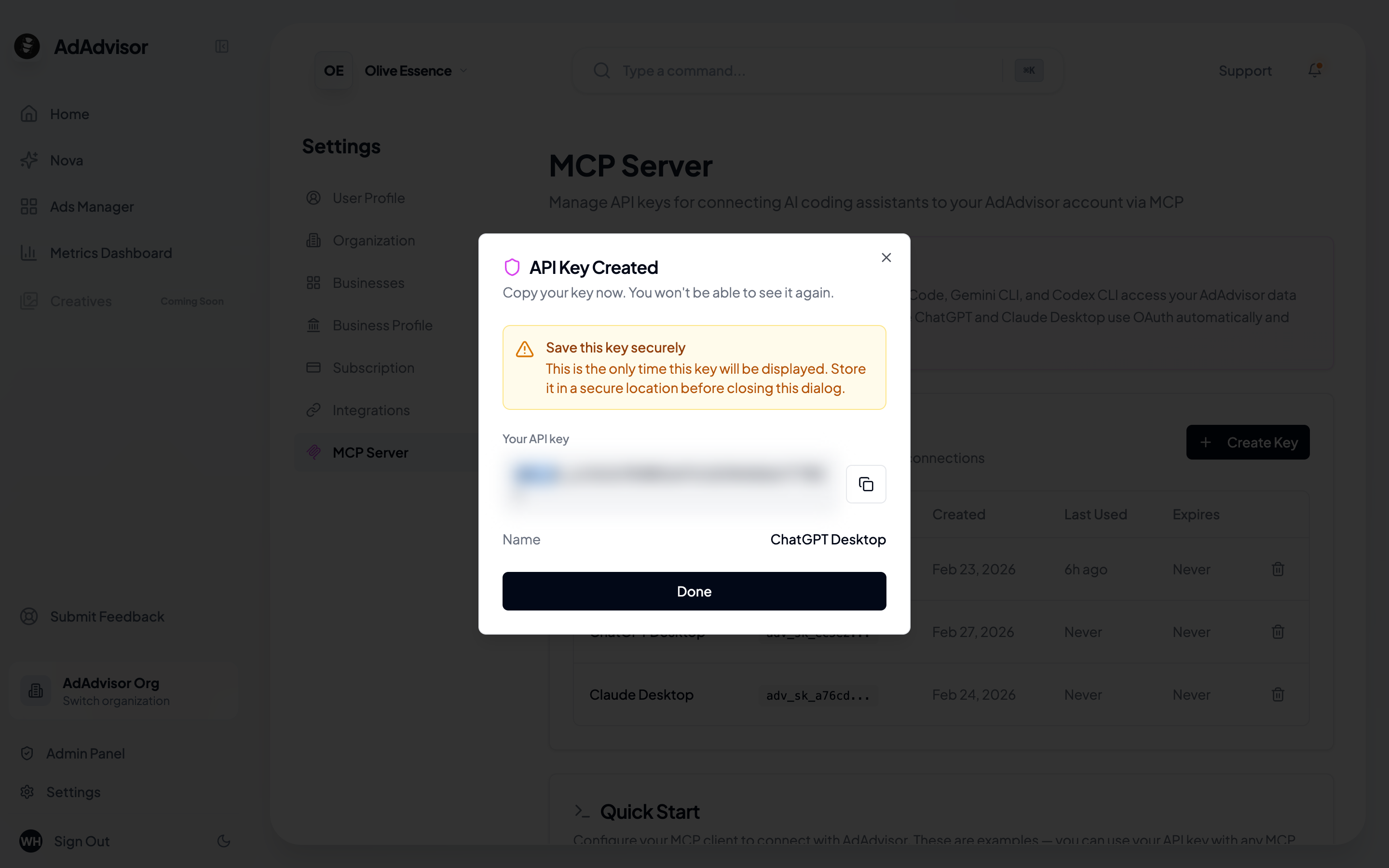
After creation, a success dialog shows the full API key. Click the copy button to save it to your clipboard.
This is the only time you'll see the full key. Once you close this dialog, the key is masked and can't be revealed again. Store it somewhere safe.
 ## Viewing your keys
The MCP Server page shows a table of all your keys with:
| Column | Description |
| ------------- | ---------------------------------------------- |
| **Name** | The label you gave the key |
| **Key** | A masked preview (last few characters visible) |
| **Created** | When the key was created |
| **Last Used** | When the key was last used to make a request |
| **Expires** | Expiration date, or "Never" |
## Revoking a key
If a key is compromised or no longer needed:
On the key's row in the table, click the delete (trash) icon.
A dialog asks you to confirm. Click **Revoke Key**.
Any client using this key will stop working right away. You'll need to create a new key and update the client configuration.
Revoking a key is instant and permanent. There's no way to un-revoke a key. If you revoke one by mistake, create a new key and update your client config.
## Best practices
* **One key per client**: Create separate keys for each tool or machine. This way, if one is compromised, you only need to revoke and replace that one.
* **Use expiration dates**: For temporary setups or shared machines, set an expiration. For your personal dev machine, "No expiration" is fine.
* **Name keys descriptively**: Use names like "Claude Code - Work Laptop" or "Cursor - Personal Mac" so you can tell them apart.
* **Rotate periodically**: Even with non-expiring keys, it's good practice to rotate them every few months. Create a new key, update your config, then revoke the old one.
## Key scope
API keys are scoped to your **organization**. Any key you create can access data for all businesses within that organization. There's no per-business key scoping at this time.
If you have multiple organizations, you'll need separate keys for each one. Create the key while the target organization is selected in the sidebar.
## Viewing your keys
The MCP Server page shows a table of all your keys with:
| Column | Description |
| ------------- | ---------------------------------------------- |
| **Name** | The label you gave the key |
| **Key** | A masked preview (last few characters visible) |
| **Created** | When the key was created |
| **Last Used** | When the key was last used to make a request |
| **Expires** | Expiration date, or "Never" |
## Revoking a key
If a key is compromised or no longer needed:
On the key's row in the table, click the delete (trash) icon.
A dialog asks you to confirm. Click **Revoke Key**.
Any client using this key will stop working right away. You'll need to create a new key and update the client configuration.
Revoking a key is instant and permanent. There's no way to un-revoke a key. If you revoke one by mistake, create a new key and update your client config.
## Best practices
* **One key per client**: Create separate keys for each tool or machine. This way, if one is compromised, you only need to revoke and replace that one.
* **Use expiration dates**: For temporary setups or shared machines, set an expiration. For your personal dev machine, "No expiration" is fine.
* **Name keys descriptively**: Use names like "Claude Code - Work Laptop" or "Cursor - Personal Mac" so you can tell them apart.
* **Rotate periodically**: Even with non-expiring keys, it's good practice to rotate them every few months. Create a new key, update your config, then revoke the old one.
## Key scope
API keys are scoped to your **organization**. Any key you create can access data for all businesses within that organization. There's no per-business key scoping at this time.
If you have multiple organizations, you'll need separate keys for each one. Create the key while the target organization is selected in the sidebar.