> ## Documentation Index
> Fetch the complete documentation index at: https://adadvisor.ai/docs/llms.txt
> Use this file to discover all available pages before exploring further.
# Campaign Recommendations Panel
> Open the side panel to view and act on AI recommendations for any campaign directly from Ads Manager.
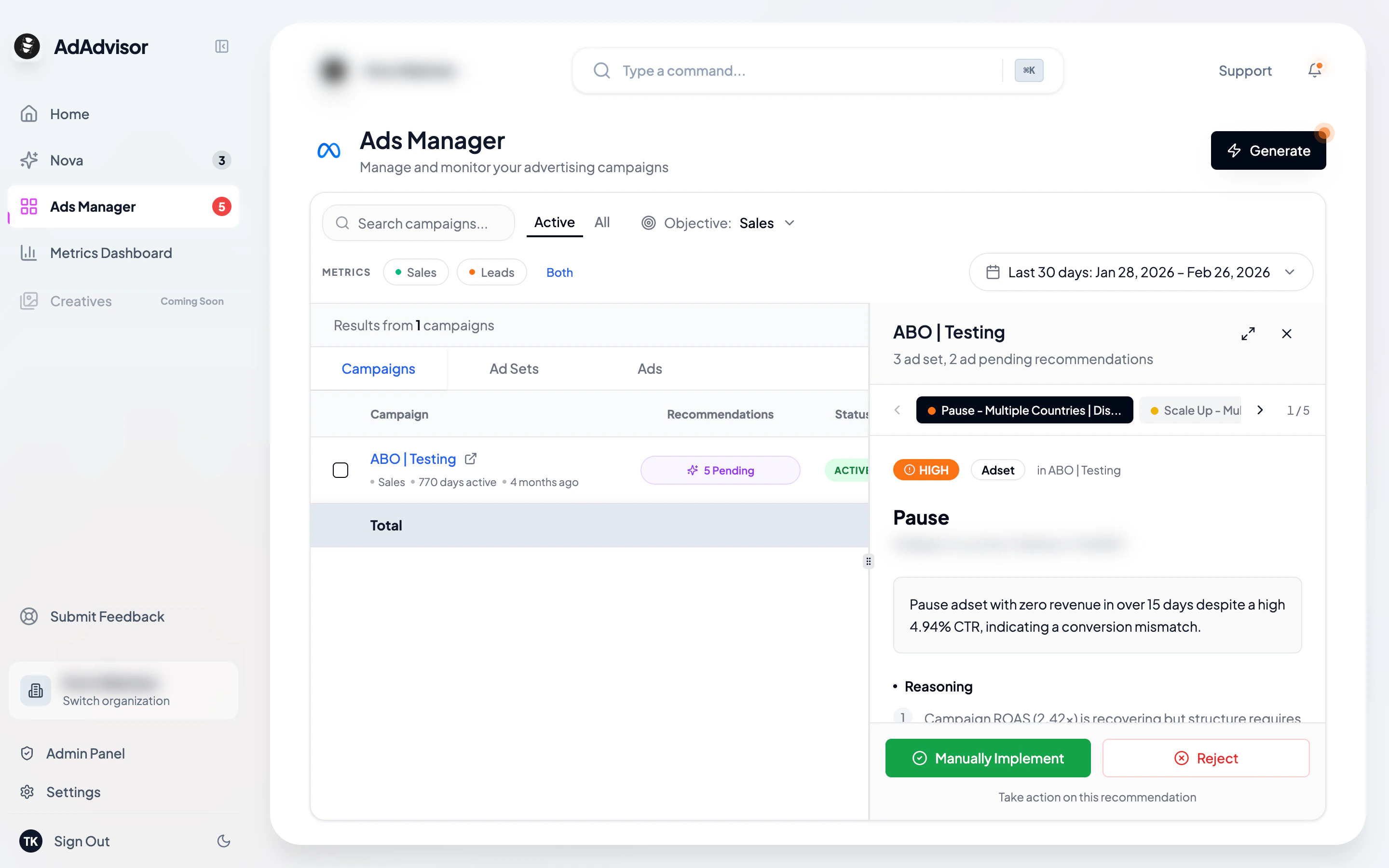
When you click a campaign's recommendation badge in Ads Manager, a panel slides in from the right showing all the AI recommendations for that campaign, its ad sets, and its ads. You can review and act on recommendations without leaving the Ads Manager.
 ## Opening the panel
In the Campaigns tab, look for the **Recommendations** column. If a campaign has pending recommendations, you'll see a badge with the count (e.g., "5 pending"). Click it to open the panel.
The Ads Manager table resizes to make room, typically splitting to about 55% table and 45% panel. You can drag the divider to adjust the split.
## Navigating recommendations
The panel shows recommendations as navigable tabs along the top:
* Each tab represents one recommendation and shows the action type and entity name
* Tabs are color-coded by priority (critical, high, medium, low)
* Use the **Previous** and **Next** buttons at the bottom to move between recommendations
* A counter shows your position (e.g., "3 of 7")
You can also click any tab directly to jump to that recommendation.
Recommendations are grouped by entity type: campaigns first, then ad sets, then ads. Within each group, they're sorted by priority (critical first).
## Understanding and acting on recommendations
Each recommendation card shows the entity it applies to, a summary, the AI's reasoning, key metrics, and specific implementation instructions. For a full breakdown of what each section means, see [Viewing Recommendations](/user-guide/viewing-recommendations#anatomy-of-a-recommendation).
At the bottom of each card, you'll find buttons to **Auto-Implement**, **Manually Implement**, or **Reject**. For details on each action, see [Implementing Recommendations](/user-guide/implementing-recommendations) and [Rejecting Recommendations](/user-guide/rejecting-recommendations).
## Expanding to full screen
If you need more space, click the expand icon in the panel header to view the recommendation in a full-screen modal. Click the close button or press **Escape** to return to the split view.
## Closing the panel
Click the **X** button in the panel header to close it and return to the full-width Ads Manager table.
You can use keyboard shortcuts to navigate: arrow keys to move between recommendations, and Escape to close the panel.
## Opening the panel
In the Campaigns tab, look for the **Recommendations** column. If a campaign has pending recommendations, you'll see a badge with the count (e.g., "5 pending"). Click it to open the panel.
The Ads Manager table resizes to make room, typically splitting to about 55% table and 45% panel. You can drag the divider to adjust the split.
## Navigating recommendations
The panel shows recommendations as navigable tabs along the top:
* Each tab represents one recommendation and shows the action type and entity name
* Tabs are color-coded by priority (critical, high, medium, low)
* Use the **Previous** and **Next** buttons at the bottom to move between recommendations
* A counter shows your position (e.g., "3 of 7")
You can also click any tab directly to jump to that recommendation.
Recommendations are grouped by entity type: campaigns first, then ad sets, then ads. Within each group, they're sorted by priority (critical first).
## Understanding and acting on recommendations
Each recommendation card shows the entity it applies to, a summary, the AI's reasoning, key metrics, and specific implementation instructions. For a full breakdown of what each section means, see [Viewing Recommendations](/user-guide/viewing-recommendations#anatomy-of-a-recommendation).
At the bottom of each card, you'll find buttons to **Auto-Implement**, **Manually Implement**, or **Reject**. For details on each action, see [Implementing Recommendations](/user-guide/implementing-recommendations) and [Rejecting Recommendations](/user-guide/rejecting-recommendations).
## Expanding to full screen
If you need more space, click the expand icon in the panel header to view the recommendation in a full-screen modal. Click the close button or press **Escape** to return to the split view.
## Closing the panel
Click the **X** button in the panel header to close it and return to the full-width Ads Manager table.
You can use keyboard shortcuts to navigate: arrow keys to move between recommendations, and Escape to close the panel.