> ## Documentation Index
> Fetch the complete documentation index at: https://adadvisor.ai/docs/llms.txt
> Use this file to discover all available pages before exploring further.
# How the Campaign Wizard Works
> Walk through AdAdvisor's 7-step campaign wizard to create your first AI-optimized Meta ad campaign.
If you don't have any active campaigns running on Meta, AdAdvisor's Campaign Wizard helps you build your first one. You answer a few questions about your business, and the AI generates a complete campaign plan with targeting, budget, and bid strategy.
## When does the wizard appear?
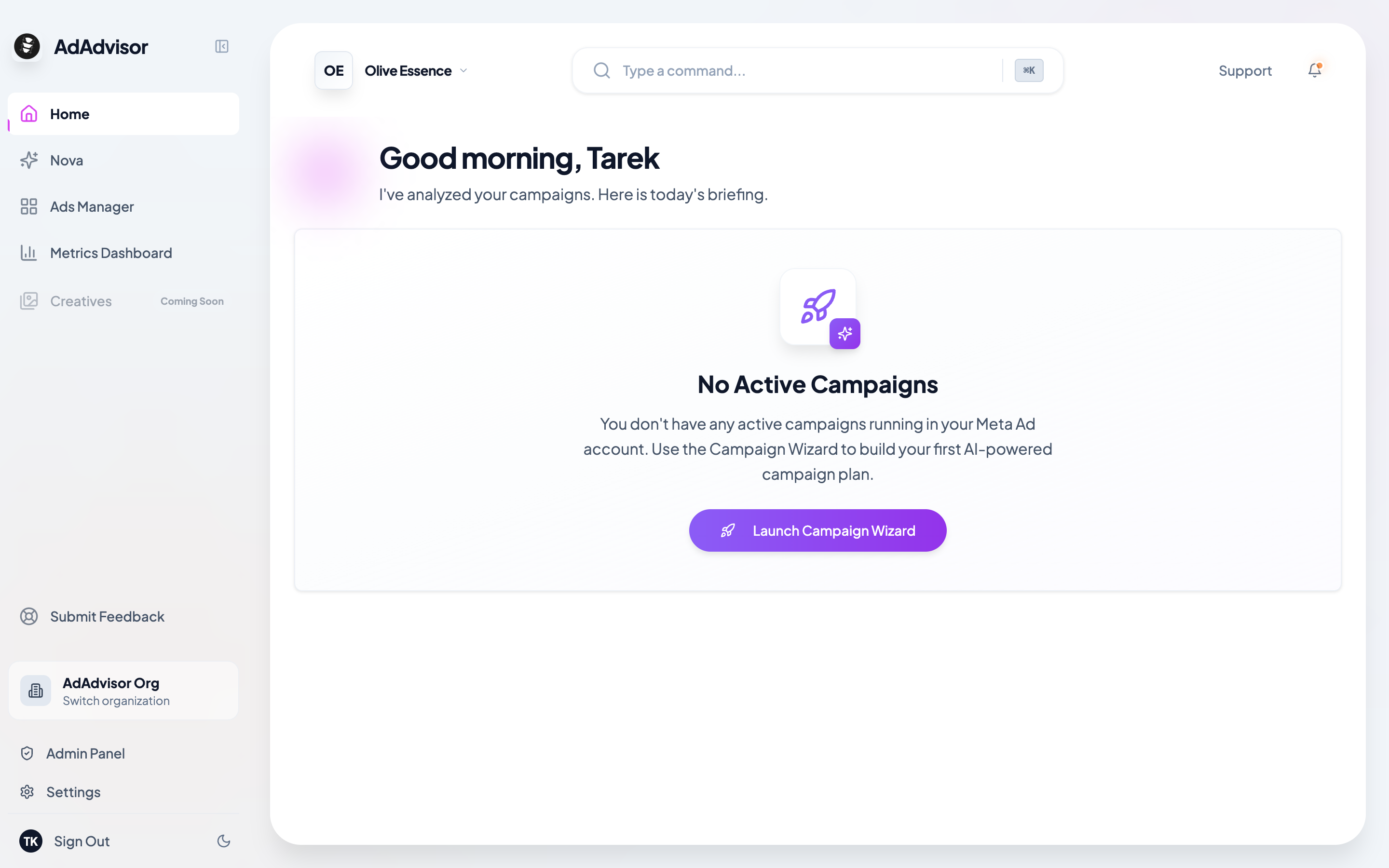
The Campaign Wizard shows up on your dashboard when AdAdvisor detects that you have no active Meta campaigns running in the last 30 days. You'll see a card prompting you to **Create Campaign Plan**.
You can also navigate to it directly anytime from the wizard link.
 ## The 7 steps
The wizard collects information through 7 short steps. Most of them are single-question screens.
## The 7 steps
The wizard collects information through 7 short steps. Most of them are single-question screens.
 Are you running an **e-commerce** store or **lead generation**? This determines which optimization goals and metrics the AI focuses on.
Enter your monthly ad spend. The AI uses this to set an appropriate daily budget for your campaign.
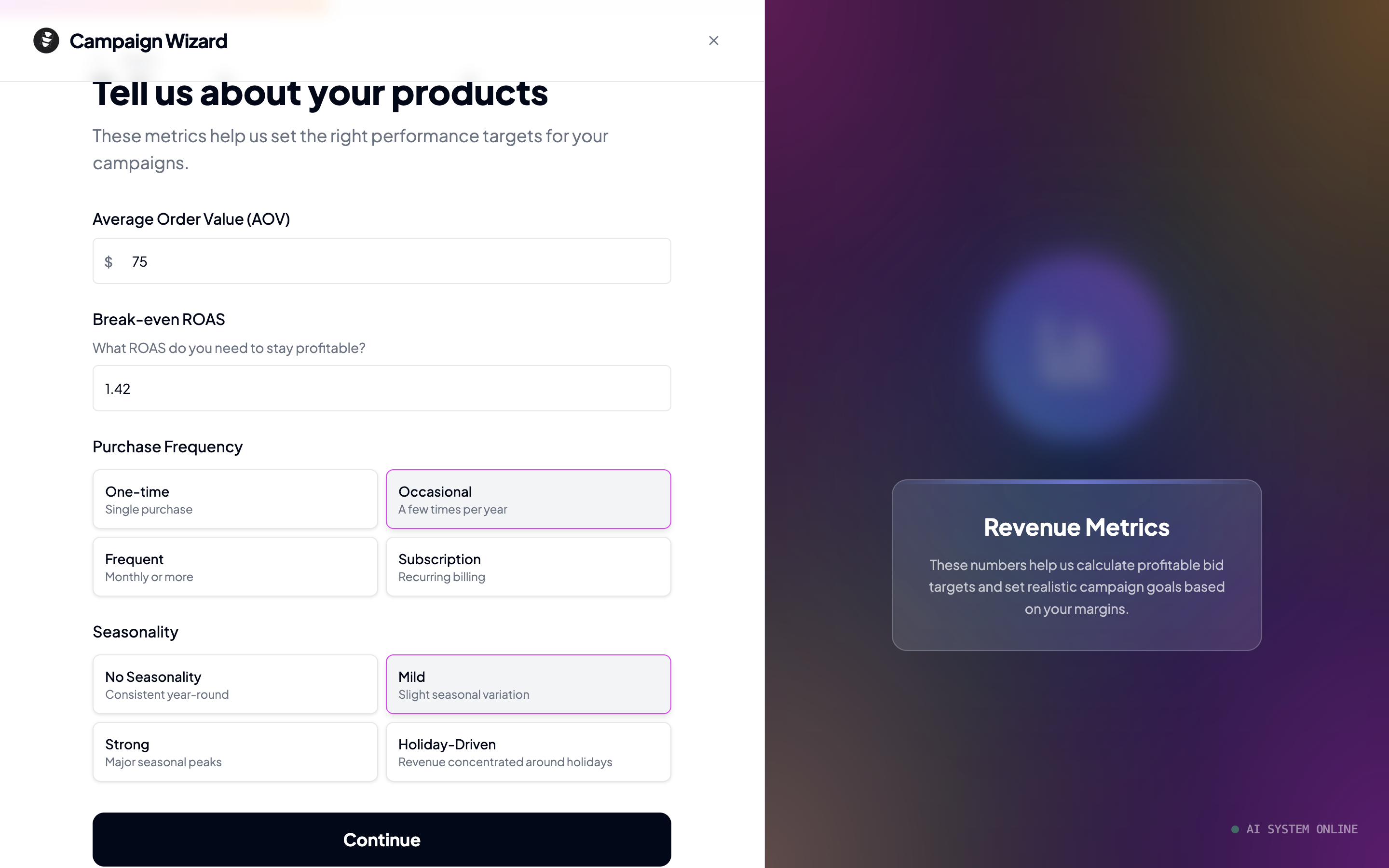
Depending on your business model:
* **E-commerce**: Enter your [Average Order Value (AOV)](/learn/aov) and [break-even ROAS](/learn/break-even-roas).
* **Lead generation**: Enter your Target [CPL](/learn/cpl) and lead value.
These numbers help the AI design a campaign that's profitable from day one. If you're not sure about your break-even ROAS, try our [free Break-Even ROAS Calculator](https://www.adadvisor.ai/tools/break-even-roas-calculator).
Tell us about your existing audience:
* **Email list size**: None, small, medium, or large
* **Social following**: None, small, medium, or large
This helps the AI decide whether to focus on [prospecting](/learn/prospecting) (finding new customers) or [retargeting](/learn/retargeting) (reaching people who already know you).
Check which assets you have available:
* Product photos
* Product videos
* User-generated content (UGC)
* Testimonials
* Brand assets (logos, guidelines)
The AI tailors its creative strategy based on what you have to work with.
Select the countries you want to target. You can pick multiple countries. The AI may also suggest specific regions or cities within those countries based on your business profile.
Do you have a [Meta Pixel](/learn/meta-pixel) installed on your website? This determines whether the campaign can optimize for [conversions](/learn/conversions) or needs to start with a traffic-based objective.
## What happens next?
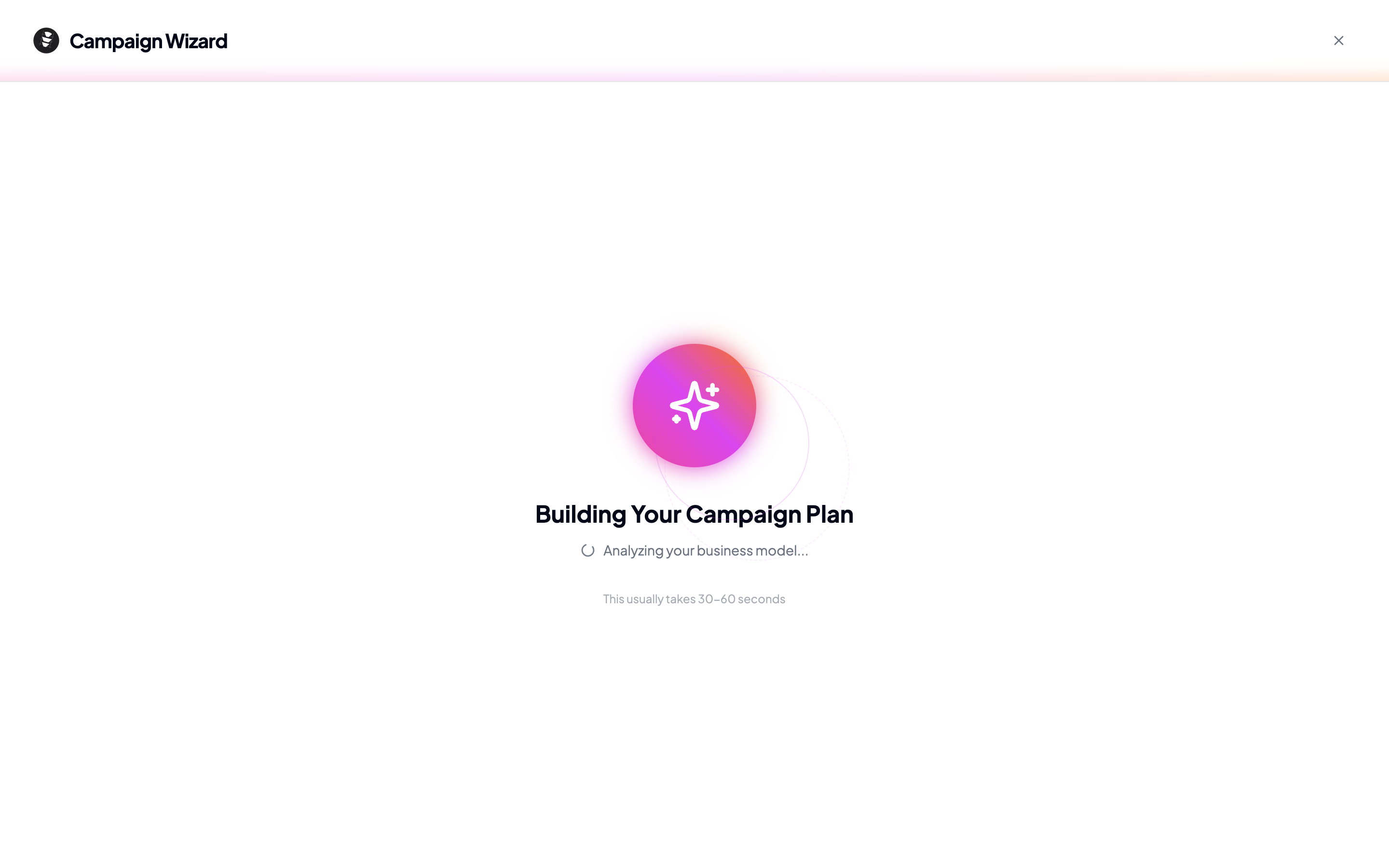
After you complete all 7 steps, you'll be taken to a loading screen while the AI generates your campaign plan. This usually takes 30 to 60 seconds. You'll see status messages as the AI works through different stages.
Are you running an **e-commerce** store or **lead generation**? This determines which optimization goals and metrics the AI focuses on.
Enter your monthly ad spend. The AI uses this to set an appropriate daily budget for your campaign.
Depending on your business model:
* **E-commerce**: Enter your [Average Order Value (AOV)](/learn/aov) and [break-even ROAS](/learn/break-even-roas).
* **Lead generation**: Enter your Target [CPL](/learn/cpl) and lead value.
These numbers help the AI design a campaign that's profitable from day one. If you're not sure about your break-even ROAS, try our [free Break-Even ROAS Calculator](https://www.adadvisor.ai/tools/break-even-roas-calculator).
Tell us about your existing audience:
* **Email list size**: None, small, medium, or large
* **Social following**: None, small, medium, or large
This helps the AI decide whether to focus on [prospecting](/learn/prospecting) (finding new customers) or [retargeting](/learn/retargeting) (reaching people who already know you).
Check which assets you have available:
* Product photos
* Product videos
* User-generated content (UGC)
* Testimonials
* Brand assets (logos, guidelines)
The AI tailors its creative strategy based on what you have to work with.
Select the countries you want to target. You can pick multiple countries. The AI may also suggest specific regions or cities within those countries based on your business profile.
Do you have a [Meta Pixel](/learn/meta-pixel) installed on your website? This determines whether the campaign can optimize for [conversions](/learn/conversions) or needs to start with a traffic-based objective.
## What happens next?
After you complete all 7 steps, you'll be taken to a loading screen while the AI generates your campaign plan. This usually takes 30 to 60 seconds. You'll see status messages as the AI works through different stages.
 Once the plan is ready, you'll be taken to the results page. Head to [Understanding Your Campaign Plan](/user-guide/understanding-your-campaign-plan) to learn how to read it.