> ## Documentation Index
> Fetch the complete documentation index at: https://adadvisor.ai/docs/llms.txt
> Use this file to discover all available pages before exploring further.
# Implementing Recommendations
> Use one-click auto-implementation to apply changes directly to Meta, or mark changes as done manually.
When you get a recommendation you agree with, you have two ways to act on it: let AdAdvisor apply the change directly through auto-implementation, or make the change yourself in Meta and mark it as done.
## Auto-implementation
For certain recommendation types, AdAdvisor can apply the change directly to your Meta ad account through the API. This is the fastest way to act on budget and status changes.
### Which recommendations support auto-implementation?
| Action | Auto-implement available? |
| ---------------------------- | ------------------------------- |
| Scale Up (budget increase) | Yes |
| Scale Down (budget decrease) | Yes |
| Pause entity | Yes |
| Shutdown campaign | Yes |
| Resume entity | Yes |
| Duplicate campaign | Yes |
| Refresh Creatives | No (requires creative assets) |
| Fix Audience Fatigue | No (requires targeting changes) |
| Create Campaign/Ad Set | No (requires manual setup) |
### How to auto-implement
On an eligible recommendation, click the **Auto-Implement** button. This button only appears for supported action types.
A dialog shows exactly what will change. For example: "This will increase the daily budget for campaign 'Summer Sale' from $50 to $75."
Click **Confirm**. AdAdvisor sends the change to Meta's API.
A progress indicator shows while the change is being applied. This usually takes a few seconds. Once done, you'll see a success notification.
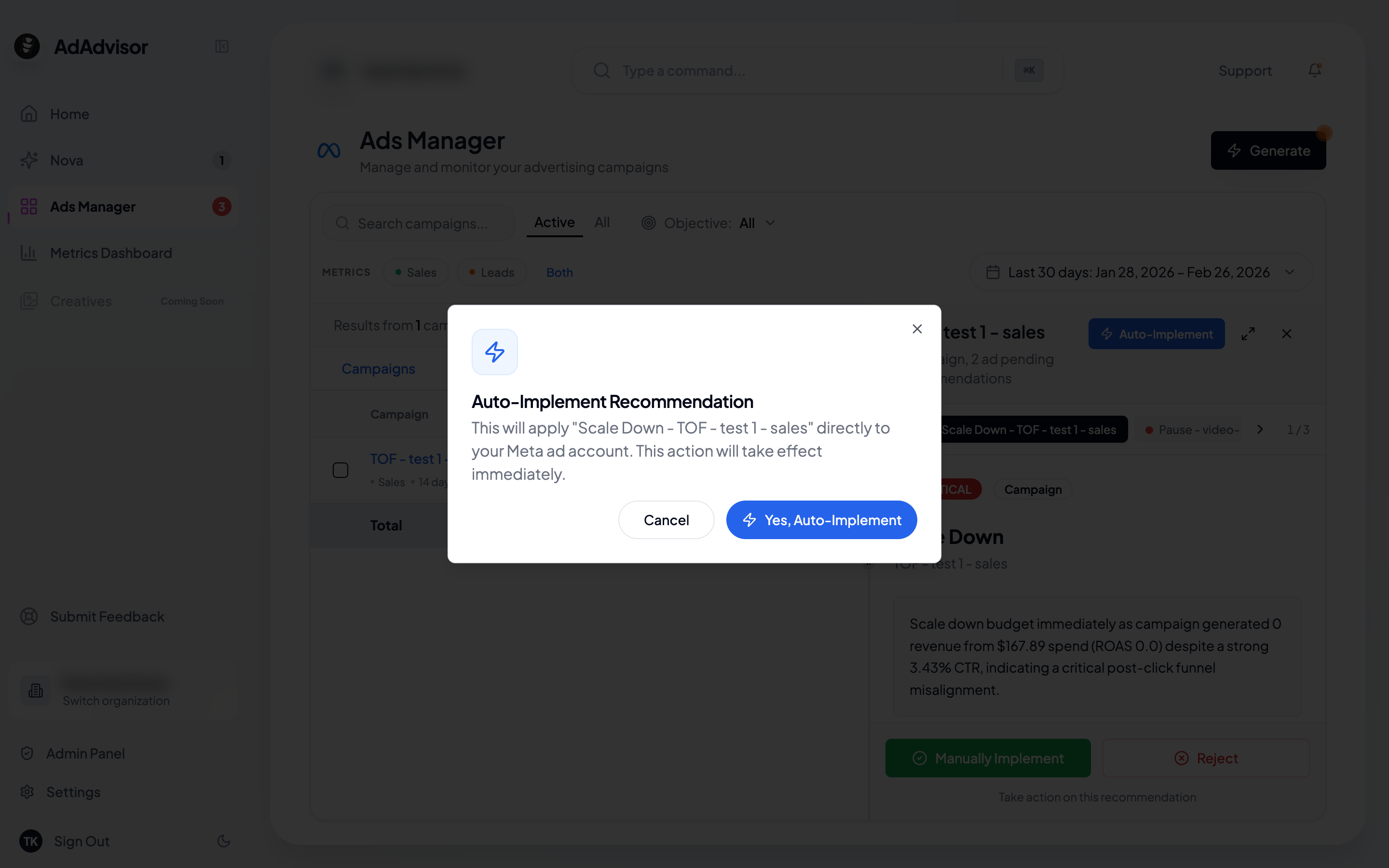 Auto-implementation makes real changes to your Meta ad account. The confirmation dialog shows you exactly what will happen. Review it carefully before confirming.
### What happens behind the scenes
When you auto-implement:
1. AdAdvisor calls the Meta Ads API with the specific change
2. A background task is created and tracked
3. The app polls for completion (you'll see the progress)
4. On success, the recommendation is marked as "Accepted" with a timestamp
5. If something fails, you'll see an error message and can try again or implement manually
## Manual implementation
Use this when you want to make the change yourself in Meta Ads Manager, or when the recommendation type isn't eligible for auto-implementation.
On the recommendation card, click the **Manually Implement** button.
A dialog appears with two fields:
* **Implementation notes**: Any details about what you changed (optional)
* **Implementation date**: Defaults to today. Change it if you made the change on a different day.
Click **Confirm**. The recommendation status changes to "Accepted" and a timestamp is recorded.
Auto-implementation makes real changes to your Meta ad account. The confirmation dialog shows you exactly what will happen. Review it carefully before confirming.
### What happens behind the scenes
When you auto-implement:
1. AdAdvisor calls the Meta Ads API with the specific change
2. A background task is created and tracked
3. The app polls for completion (you'll see the progress)
4. On success, the recommendation is marked as "Accepted" with a timestamp
5. If something fails, you'll see an error message and can try again or implement manually
## Manual implementation
Use this when you want to make the change yourself in Meta Ads Manager, or when the recommendation type isn't eligible for auto-implementation.
On the recommendation card, click the **Manually Implement** button.
A dialog appears with two fields:
* **Implementation notes**: Any details about what you changed (optional)
* **Implementation date**: Defaults to today. Change it if you made the change on a different day.
Click **Confirm**. The recommendation status changes to "Accepted" and a timestamp is recorded.
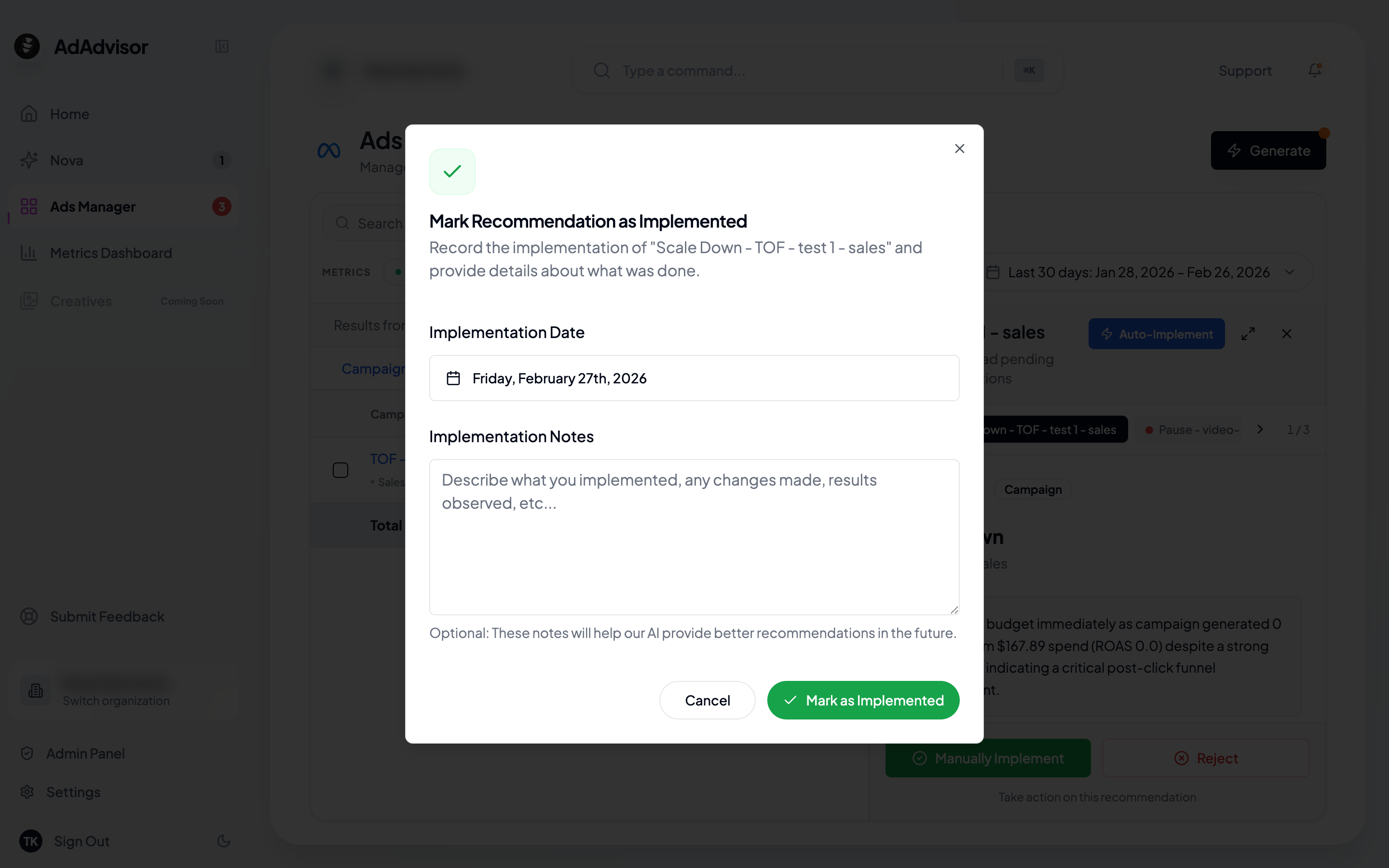 Adding notes helps the AI understand what you actually changed. This context improves future recommendation quality.
## Recommendations you should implement manually
Some recommendations require creative or strategic work that can't be automated:
* **Refresh Creatives**: You'll need to create new ad images or videos and upload them in Meta
* **Fix Audience Fatigue**: Adjust your targeting parameters in Meta's ad set settings
* **Create Campaign/Ad Set**: Build new entities with specific configurations
* **Fix Funnel/AOV**: These involve changes to your website or landing pages, not just ad settings
For these, review the implementation details in the recommendation card, make the changes in Meta (or on your website), then come back and click **Manually Implement** to mark it as done.
## Tracking your implementation history
All accepted recommendations are recorded with:
* The date and time you implemented them
* Your notes (if you added any)
* Whether it was manual or auto-implemented
You can see your implementation history by filtering recommendations to the "Implemented" status in the Ads Manager panel.
Adding notes helps the AI understand what you actually changed. This context improves future recommendation quality.
## Recommendations you should implement manually
Some recommendations require creative or strategic work that can't be automated:
* **Refresh Creatives**: You'll need to create new ad images or videos and upload them in Meta
* **Fix Audience Fatigue**: Adjust your targeting parameters in Meta's ad set settings
* **Create Campaign/Ad Set**: Build new entities with specific configurations
* **Fix Funnel/AOV**: These involve changes to your website or landing pages, not just ad settings
For these, review the implementation details in the recommendation card, make the changes in Meta (or on your website), then come back and click **Manually Implement** to mark it as done.
## Tracking your implementation history
All accepted recommendations are recorded with:
* The date and time you implemented them
* Your notes (if you added any)
* Whether it was manual or auto-implemented
You can see your implementation history by filtering recommendations to the "Implemented" status in the Ads Manager panel.