> ## Documentation Index
> Fetch the complete documentation index at: https://adadvisor.ai/docs/llms.txt
> Use this file to discover all available pages before exploring further.
# Initial Data Sync
> What happens after you connect your Meta account and how your data gets pulled in.
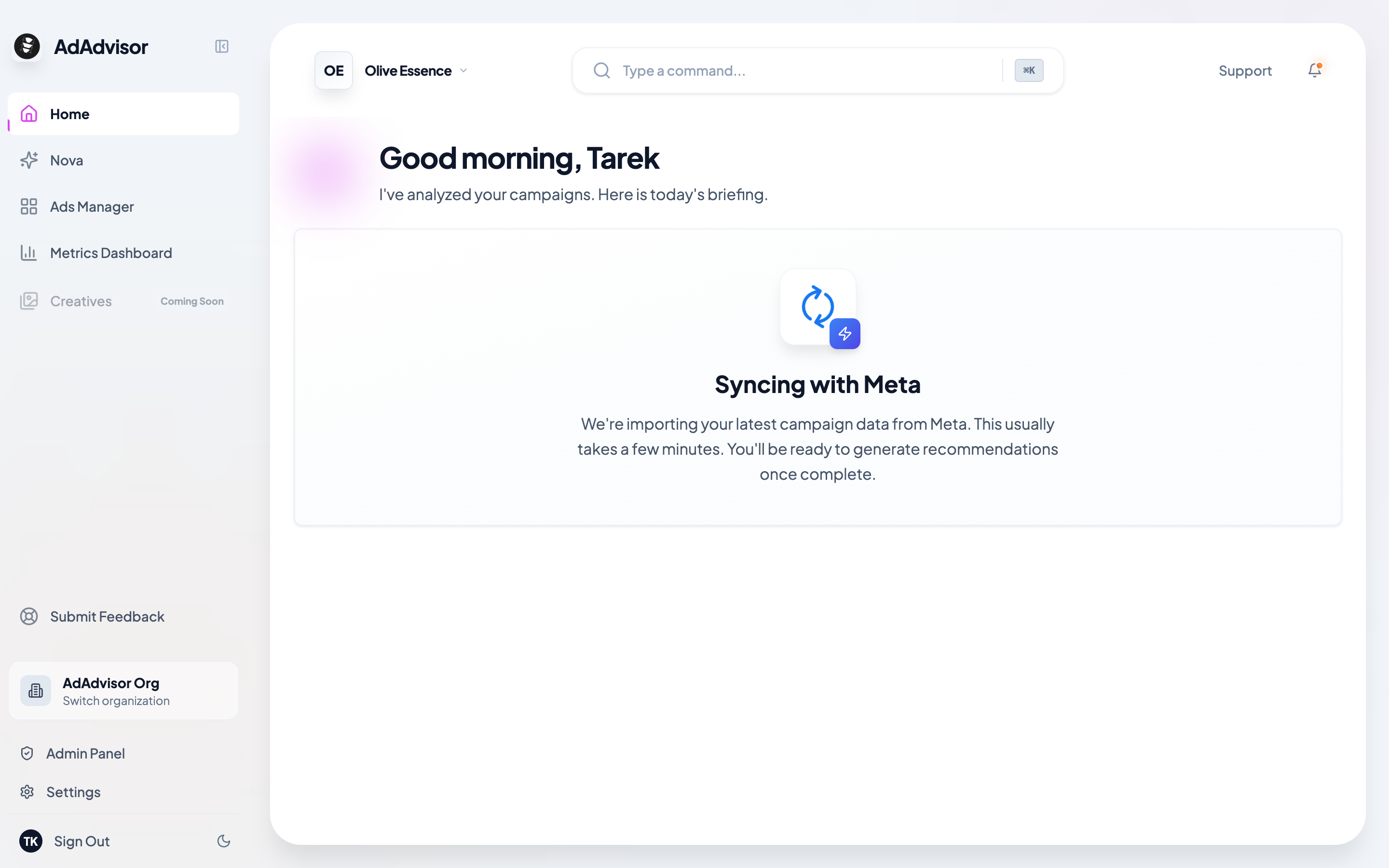
After you connect your Meta ad account, AdAdvisor automatically starts pulling in your campaign data. You'll see this happening right on the home page.
## What you'll see
Your home page will show a syncing screen while your data is being imported.
 The sync pulls in your campaigns, ad sets, ads, and daily performance metrics (spend, impressions, clicks, conversions, ROAS, and more). AdAdvisor grabs up to 2 years of historical data so the AI has enough context to spot trends and give you useful recommendations.
## How long does it take?
It depends on the size of your account. A small account with a handful of campaigns might finish in under a minute. Larger accounts with hundreds of campaigns could take 5-10 minutes.
The sync runs in the background, so it's fine to close the browser or navigate away. It'll keep going and your data will be ready when you come back.
## After the sync completes
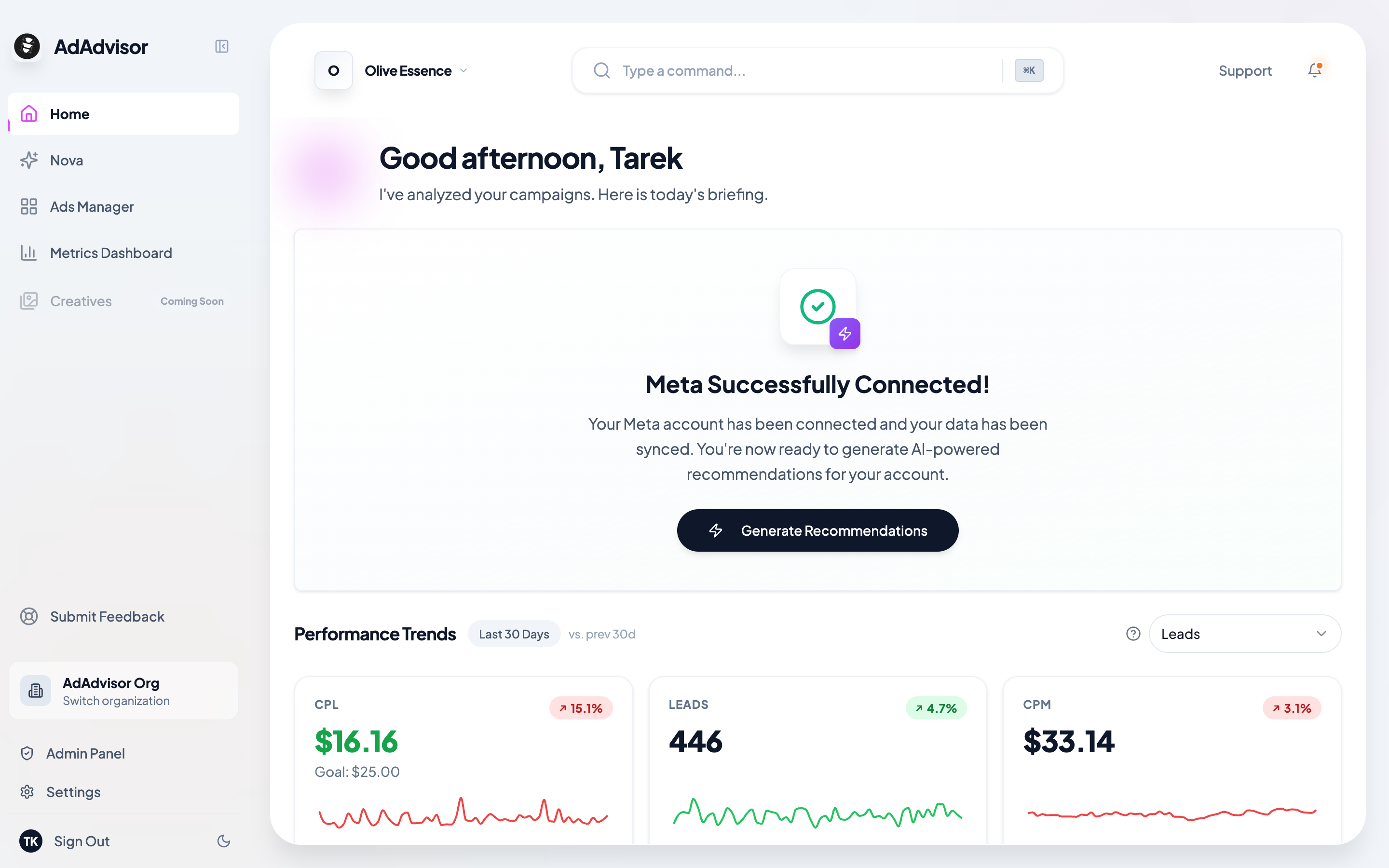
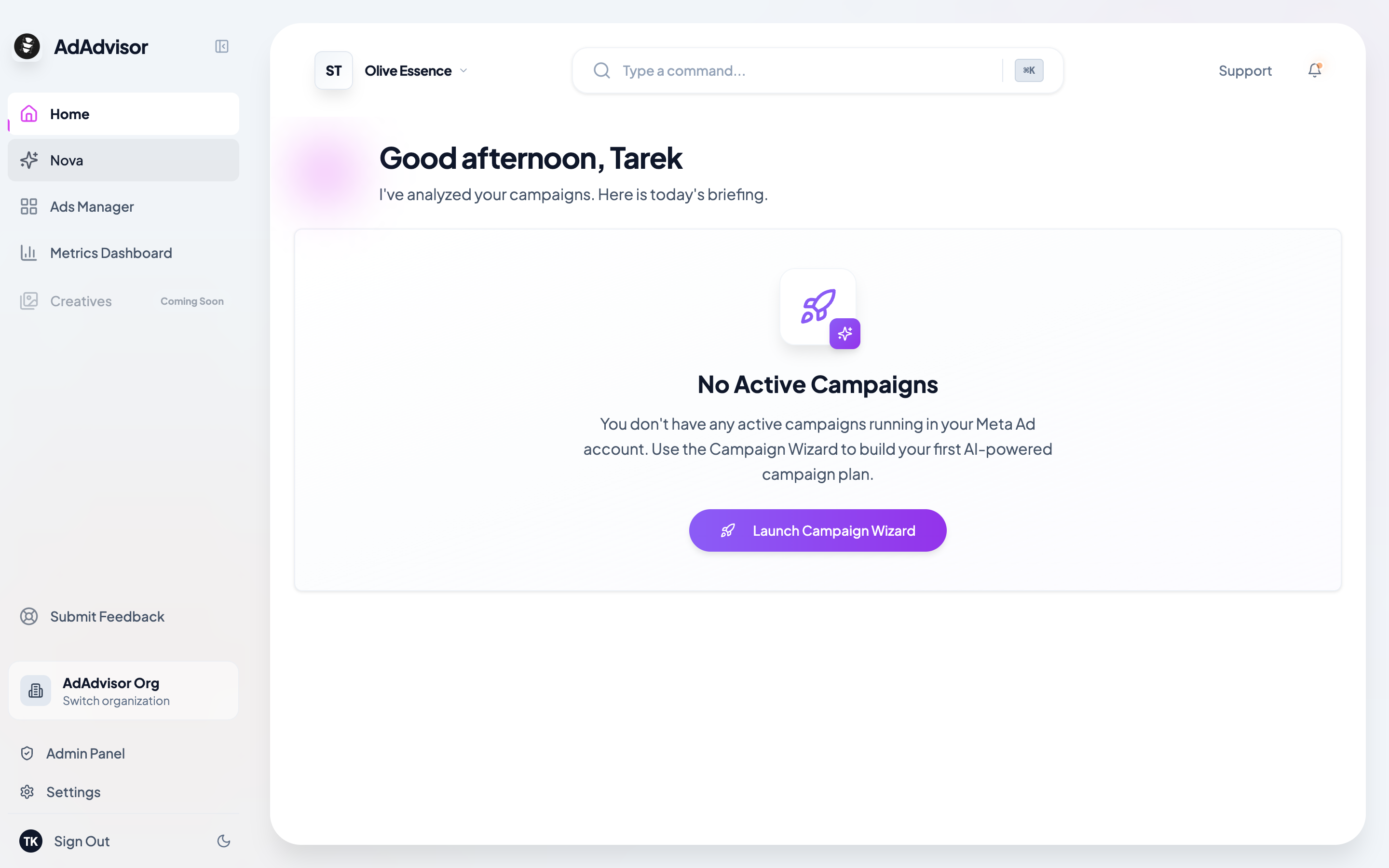
Once your data is in, the home page will update. You'll either see:
* **A "Generate Recommendations" button** if you have active campaigns. Click it to run your first AI analysis.
* **A prompt to create a campaign** if you don't have any active campaigns yet. The [Campaign Wizard](/docs/user-guide/campaign-wizard) will walk you through it.
The sync pulls in your campaigns, ad sets, ads, and daily performance metrics (spend, impressions, clicks, conversions, ROAS, and more). AdAdvisor grabs up to 2 years of historical data so the AI has enough context to spot trends and give you useful recommendations.
## How long does it take?
It depends on the size of your account. A small account with a handful of campaigns might finish in under a minute. Larger accounts with hundreds of campaigns could take 5-10 minutes.
The sync runs in the background, so it's fine to close the browser or navigate away. It'll keep going and your data will be ready when you come back.
## After the sync completes
Once your data is in, the home page will update. You'll either see:
* **A "Generate Recommendations" button** if you have active campaigns. Click it to run your first AI analysis.
* **A prompt to create a campaign** if you don't have any active campaigns yet. The [Campaign Wizard](/docs/user-guide/campaign-wizard) will walk you through it.
 ## Keeping your data up to date
Now that AdAdvisor is connected to your Meta ad account, it will continuously stay in sync with your latest campaign performance. This happens automatically in the background so your recommendations and insights are always based on fresh data. You don't need to do anything on your end.
## What's next?
Your data is synced. Time to get your first AI recommendations.
## Keeping your data up to date
Now that AdAdvisor is connected to your Meta ad account, it will continuously stay in sync with your latest campaign performance. This happens automatically in the background so your recommendations and insights are always based on fresh data. You don't need to do anything on your end.
## What's next?
Your data is synced. Time to get your first AI recommendations.