> ## Documentation Index
> Fetch the complete documentation index at: https://adadvisor.ai/docs/llms.txt
> Use this file to discover all available pages before exploring further.
# Managing Businesses
> Add, edit, and remove businesses within your organization. Set key metrics like AOV and break-even ROAS.
Each organization can have multiple businesses. A business represents a brand, store, or client whose Meta ads you're managing. Each business connects to its own Meta ad account and has its own set of recommendations.
## Viewing your businesses
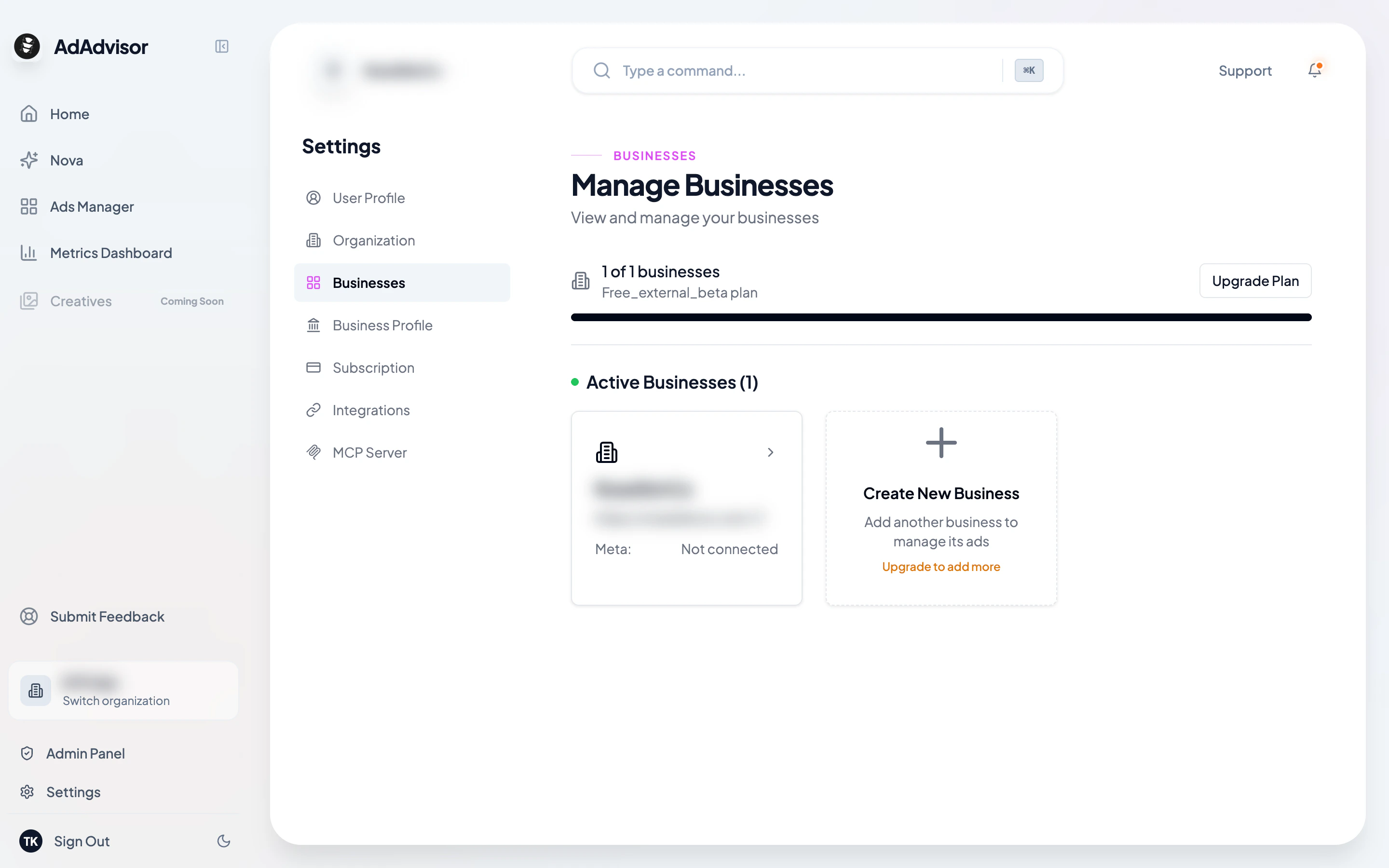
Go to **Settings > Businesses** to see all businesses in your current organization. The page shows:
* A **usage indicator** at the top (e.g., "2 of 3 businesses" based on your plan)
* Cards for **active businesses**, **pending deactivation**, and **deactivated businesses**
 ## Creating a new business
At the end of the active businesses grid, you'll see a card with a plus icon. Click it to open the creation dialog.
If you've reached your plan's business limit, this card will be disabled and show an "Upgrade to add more" message.
The form has the following fields:
| Field | Required? | Description |
| ----------------------------------------- | --------- | ------------------------------------------------- |
| Business name | Yes | The name of the brand or store |
| Storefront URL | No | Your website (used for AI business research) |
| [Break-even ROAS](/learn/break-even-roas) | No | The [ROAS](/learn/roas) you need to be profitable |
| [Average Order Value](/learn/aov) | No | Your typical order value |
| Target [CPL](/learn/cpl) | No | Your target cost per lead (for lead campaigns) |
| Daily budget cap | No | Maximum daily ad spend across all campaigns |
The business is created and added to your organization. You can now select it from the sidebar.
After creating the business, you'll need to connect the Meta ad account associated with it. See [Connect Meta Ads](/user-guide/connect-meta-ads) for how to do that.
Fill in the business metrics (ROAS, AOV, etc.) sooner rather than later. The AI uses these to calibrate recommendations and color-code your performance data. Without them, you'll see a prompt to add metrics before you can generate recommendations.
## Editing a business
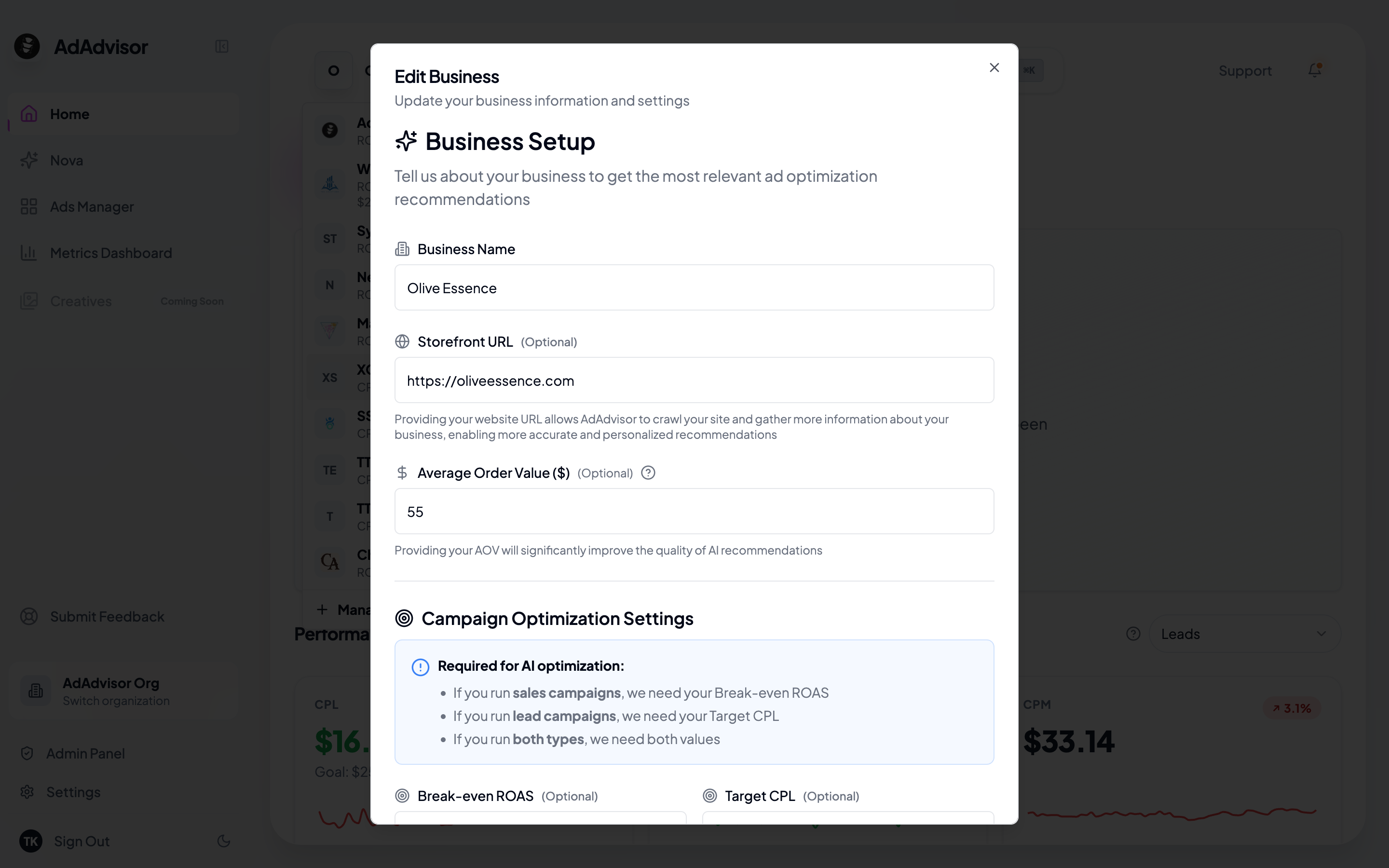
Click the **edit icon** on any business card to open the edit dialog. You can update any field, including the business name, storefront URL, and all metrics.
## Creating a new business
At the end of the active businesses grid, you'll see a card with a plus icon. Click it to open the creation dialog.
If you've reached your plan's business limit, this card will be disabled and show an "Upgrade to add more" message.
The form has the following fields:
| Field | Required? | Description |
| ----------------------------------------- | --------- | ------------------------------------------------- |
| Business name | Yes | The name of the brand or store |
| Storefront URL | No | Your website (used for AI business research) |
| [Break-even ROAS](/learn/break-even-roas) | No | The [ROAS](/learn/roas) you need to be profitable |
| [Average Order Value](/learn/aov) | No | Your typical order value |
| Target [CPL](/learn/cpl) | No | Your target cost per lead (for lead campaigns) |
| Daily budget cap | No | Maximum daily ad spend across all campaigns |
The business is created and added to your organization. You can now select it from the sidebar.
After creating the business, you'll need to connect the Meta ad account associated with it. See [Connect Meta Ads](/user-guide/connect-meta-ads) for how to do that.
Fill in the business metrics (ROAS, AOV, etc.) sooner rather than later. The AI uses these to calibrate recommendations and color-code your performance data. Without them, you'll see a prompt to add metrics before you can generate recommendations.
## Editing a business
Click the **edit icon** on any business card to open the edit dialog. You can update any field, including the business name, storefront URL, and all metrics.
 ## Deleting a business
Click the **delete icon** on a business card and confirm in the dialog. This permanently removes the business and its associated data.
Deleting a business is permanent and can't be undone. If you just want to temporarily remove a business, consider downgrading your plan instead, which schedules deactivation at the end of your billing period.
## Business statuses
| Status | What it means |
| ------------------------ | ---------------------------------------------------------------------------------------------------------------------------------------- |
| **Active** | Normal, fully functional business. You can view data, generate recommendations, and manage it. |
| **Pending Deactivation** | Scheduled to deactivate at the end of your billing period (usually because of a plan downgrade). Shows the deactivation date. Read-only. |
| **Deactivated** | No longer accessible. Shows a "Reactivate" button if you have available slots in your plan. |
## Reactivating a business
If you have an open slot in your plan, you can reactivate a deactivated business by clicking the **Reactivate** button on its card. If you don't have enough slots, you'll be prompted to upgrade first.
## Selecting a business
Click a business card (or use the sidebar dropdown) to make it the active business. All dashboard metrics, Ads Manager data, and recommendations will switch to reflect the selected business.
Your selection is saved between sessions, so you'll see the same business when you come back.
## Deleting a business
Click the **delete icon** on a business card and confirm in the dialog. This permanently removes the business and its associated data.
Deleting a business is permanent and can't be undone. If you just want to temporarily remove a business, consider downgrading your plan instead, which schedules deactivation at the end of your billing period.
## Business statuses
| Status | What it means |
| ------------------------ | ---------------------------------------------------------------------------------------------------------------------------------------- |
| **Active** | Normal, fully functional business. You can view data, generate recommendations, and manage it. |
| **Pending Deactivation** | Scheduled to deactivate at the end of your billing period (usually because of a plan downgrade). Shows the deactivation date. Read-only. |
| **Deactivated** | No longer accessible. Shows a "Reactivate" button if you have available slots in your plan. |
## Reactivating a business
If you have an open slot in your plan, you can reactivate a deactivated business by clicking the **Reactivate** button on its card. If you don't have enough slots, you'll be prompted to upgrade first.
## Selecting a business
Click a business card (or use the sidebar dropdown) to make it the active business. All dashboard metrics, Ads Manager data, and recommendations will switch to reflect the selected business.
Your selection is saved between sessions, so you'll see the same business when you come back.