> ## Documentation Index
> Fetch the complete documentation index at: https://adadvisor.ai/docs/llms.txt
> Use this file to discover all available pages before exploring further.
# Navigating Ads Manager
> Explore AdAdvisor's Ads Manager with its campaign, ad set, and ad hierarchy.
AdAdvisor's Ads Manager gives you a fast, focused view of your Meta campaigns. It follows the same hierarchy you'd find in Meta's native Ads Manager (campaigns, ad sets, ads) but strips away the noise and highlights the metrics that matter for your business.
 ## The three tabs
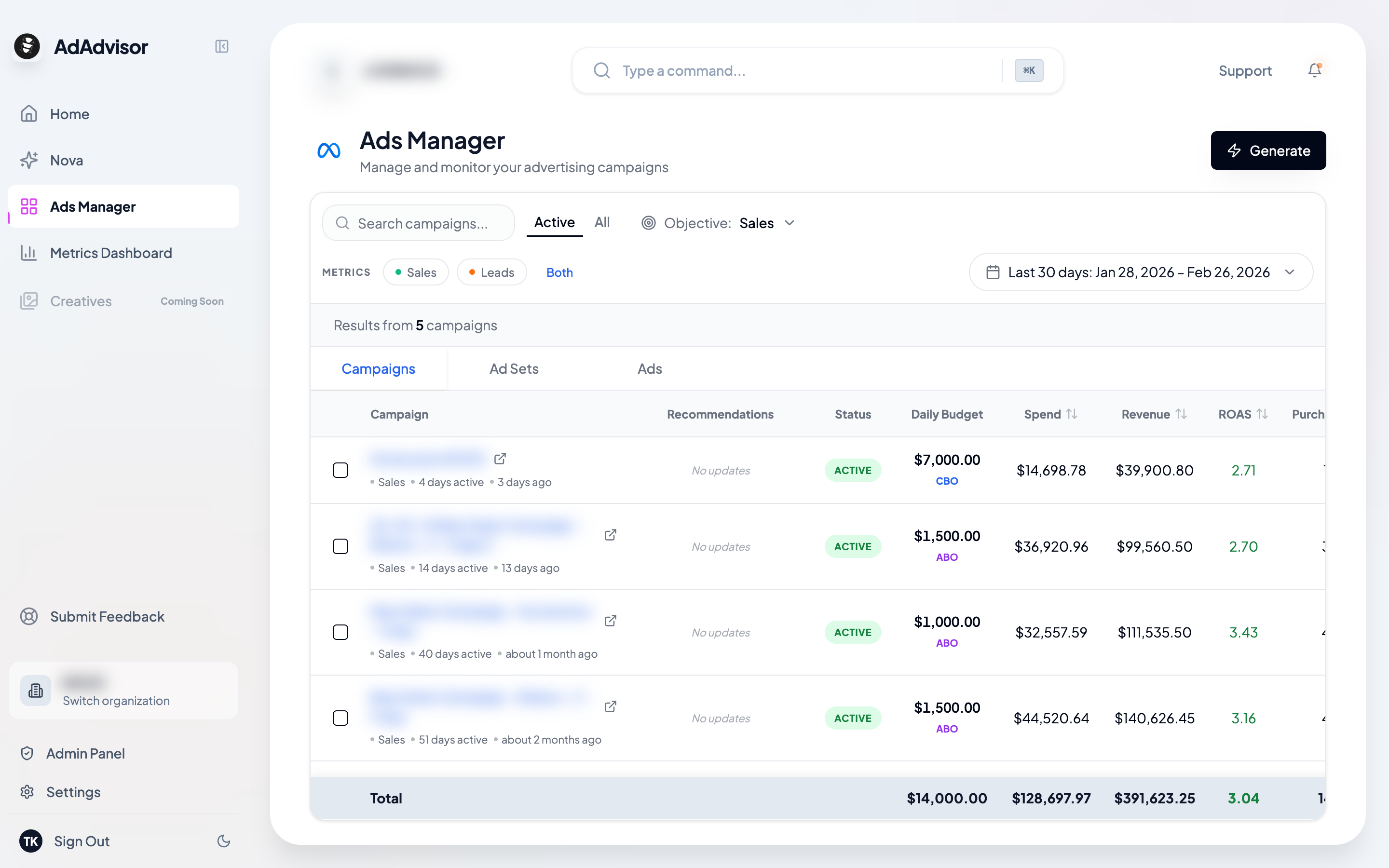
Ads Manager is organized into three tabs that mirror Meta's campaign hierarchy:
### Campaigns
The top-level view. Each row is one of your Meta campaigns. You'll see the campaign name, status, daily budget, and all your key metrics. Campaigns are sorted by most recently edited by default.
### Ad Sets
One level down. Each campaign contains one or more ad sets, which control targeting and budget allocation. When you click a campaign in the Campaigns tab, the view automatically switches to Ad Sets and filters to show only that campaign's ad sets.
### Ads
The most granular level. Each ad set contains individual ads. Click an ad set to drill down into its ads.
## How drilling down works
The hierarchy navigation is one of the most useful features in Ads Manager:
You see all your campaigns listed. Click the checkbox next to a campaign you want to explore.
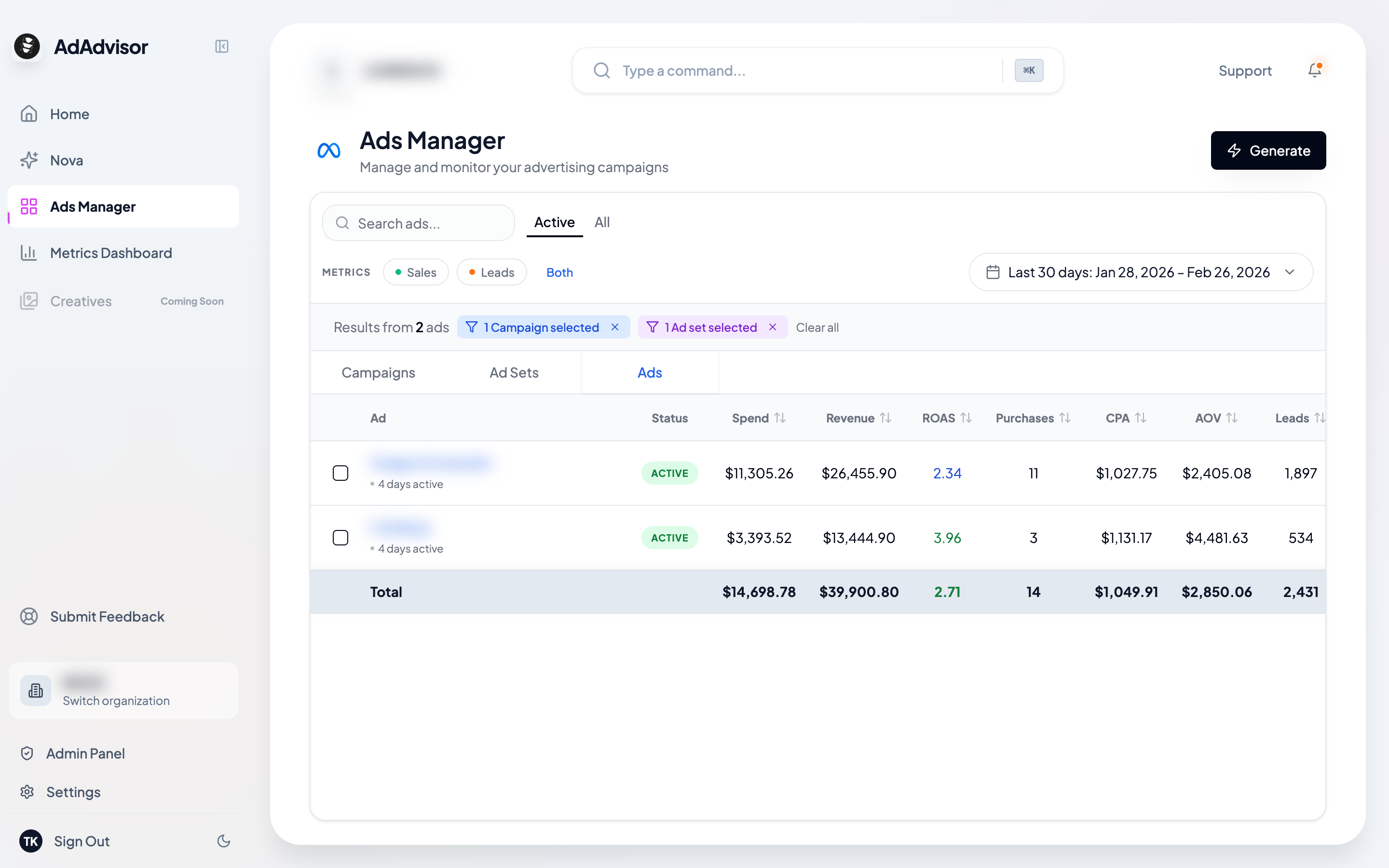
Ads Manager automatically switches to the Ad Sets tab, filtered to show only the ad sets belonging to your selected campaign. You'll see a badge at the top saying "1 Campaign selected" with a filter icon.
Click an ad set to drill further. The view switches to the Ads tab, filtered to that ad set. You'll see badges for both the selected campaign and ad set.
Click the **X** on any selection badge, or click **Clear all** to go back to the unfiltered view.
## The three tabs
Ads Manager is organized into three tabs that mirror Meta's campaign hierarchy:
### Campaigns
The top-level view. Each row is one of your Meta campaigns. You'll see the campaign name, status, daily budget, and all your key metrics. Campaigns are sorted by most recently edited by default.
### Ad Sets
One level down. Each campaign contains one or more ad sets, which control targeting and budget allocation. When you click a campaign in the Campaigns tab, the view automatically switches to Ad Sets and filters to show only that campaign's ad sets.
### Ads
The most granular level. Each ad set contains individual ads. Click an ad set to drill down into its ads.
## How drilling down works
The hierarchy navigation is one of the most useful features in Ads Manager:
You see all your campaigns listed. Click the checkbox next to a campaign you want to explore.
Ads Manager automatically switches to the Ad Sets tab, filtered to show only the ad sets belonging to your selected campaign. You'll see a badge at the top saying "1 Campaign selected" with a filter icon.
Click an ad set to drill further. The view switches to the Ads tab, filtered to that ad set. You'll see badges for both the selected campaign and ad set.
Click the **X** on any selection badge, or click **Clear all** to go back to the unfiltered view.
 ## The recommendations column
Each campaign row has a **Recommendations** column. If there are pending AI recommendations for that campaign, you'll see a badge with the count (e.g., "3 pending"). Click it to open the recommendations panel on the right side of the screen.
This is covered in detail in [Campaign Recommendations Panel](/user-guide/campaign-recommendations-panel).
## Search and status filters
At the top of the table, you'll find:
* **Search bar**: Type a campaign, ad set, or ad name to filter the list instantly.
* **Status toggle**: Switch between **Active** (only running entities) and **All** (including paused, archived, etc.).
Use the "Active" filter to focus on what's currently spending money, and switch to "All" when you need to find paused or completed campaigns.
## Sorting
Click any column header to sort by that metric. Click once for descending, again for ascending, and a third time to reset to the default sort order.
## Totals row
At the bottom of the table, a totals row aggregates all the visible entities. This gives you a quick summary of total spend, revenue, impressions, and other metrics for everything currently displayed.
The totals row respects your current filters. If you've filtered to a single campaign's ad sets, the totals reflect only those ad sets.
## The recommendations column
Each campaign row has a **Recommendations** column. If there are pending AI recommendations for that campaign, you'll see a badge with the count (e.g., "3 pending"). Click it to open the recommendations panel on the right side of the screen.
This is covered in detail in [Campaign Recommendations Panel](/user-guide/campaign-recommendations-panel).
## Search and status filters
At the top of the table, you'll find:
* **Search bar**: Type a campaign, ad set, or ad name to filter the list instantly.
* **Status toggle**: Switch between **Active** (only running entities) and **All** (including paused, archived, etc.).
Use the "Active" filter to focus on what's currently spending money, and switch to "All" when you need to find paused or completed campaigns.
## Sorting
Click any column header to sort by that metric. Click once for descending, again for ascending, and a third time to reset to the default sort order.
## Totals row
At the bottom of the table, a totals row aggregates all the visible entities. This gives you a quick summary of total spend, revenue, impressions, and other metrics for everything currently displayed.
The totals row respects your current filters. If you've filtered to a single campaign's ad sets, the totals reflect only those ad sets.