> ## Documentation Index
> Fetch the complete documentation index at: https://adadvisor.ai/docs/llms.txt
> Use this file to discover all available pages before exploring further.
# Organization & Team
> Manage your organization, invite team members, and assign roles.
An organization is the top-level container in AdAdvisor. It holds your businesses, team members, and subscription.
## Viewing your organization
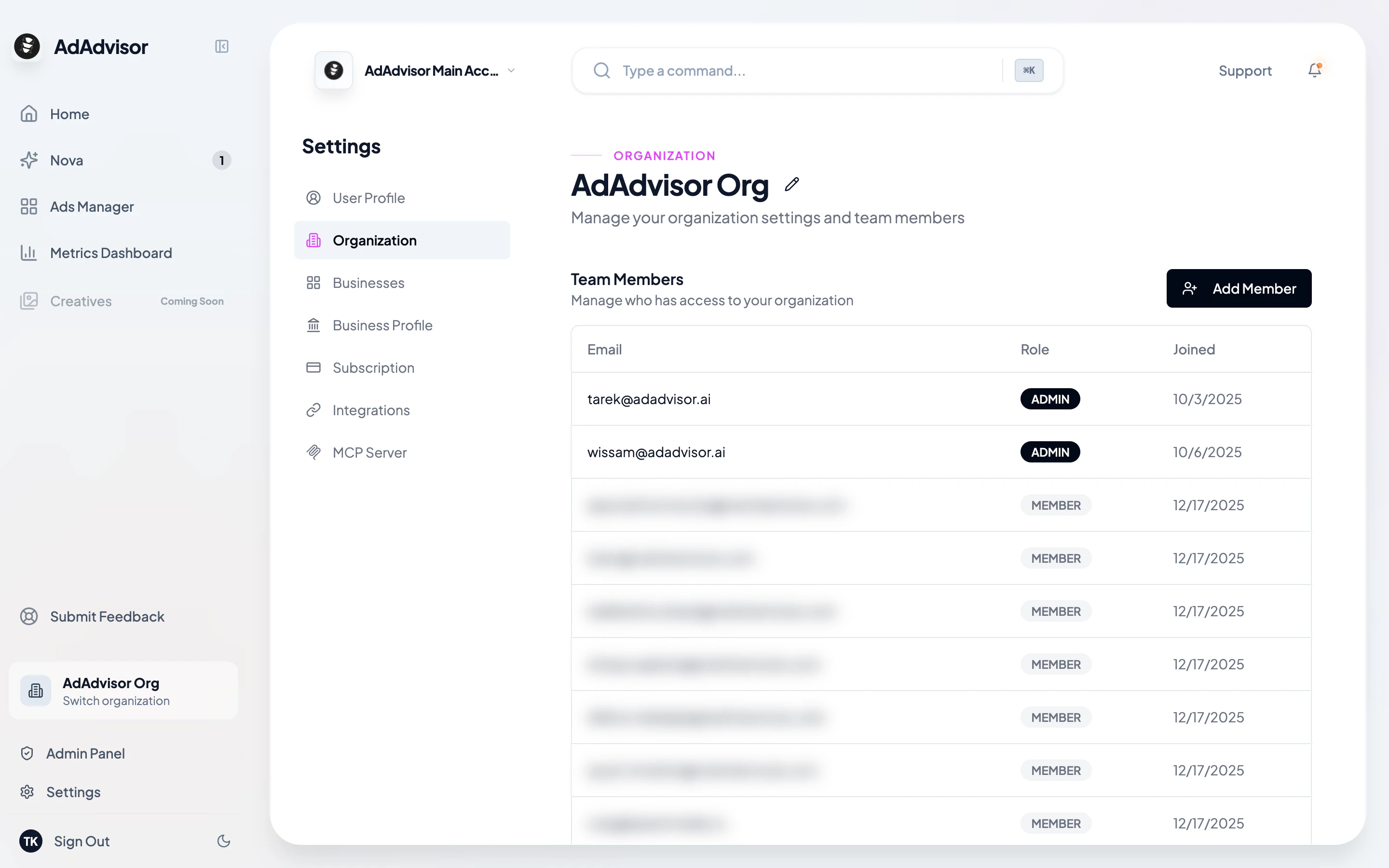
Go to **Settings > Organization** to see your current organization details.
 ## Editing the organization name
Click the pencil icon next to your organization name to rename it. Click the checkmark to save, or the X to cancel.
## Team members
The Organization page shows a table of everyone in your organization with their:
* Email address
* Role (Admin or Member)
* Date they joined
### Roles
| Role | Permissions |
| ---------- | ------------------------------------------------------------------------------------------------------------------------------ |
| **Admin** | Full access. Can edit businesses, manage team members, change subscription, generate recommendations, and manage integrations. |
| **Member** | Read access to the dashboard and Ads Manager. Can view recommendations but can't edit businesses or manage the team. |
The person who created the organization is automatically an Admin.
## Inviting team members
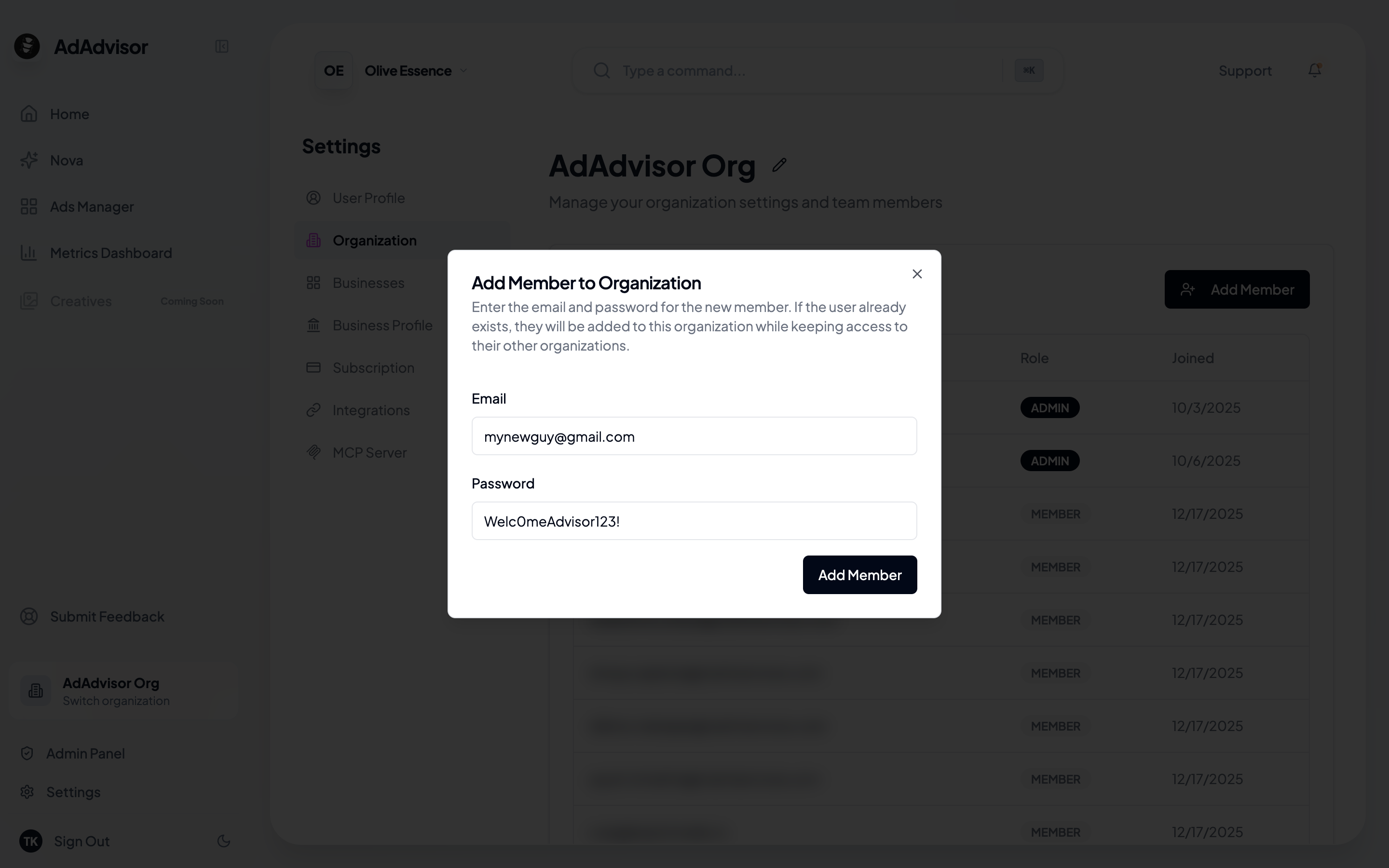
On the Organization page, click the **Add Member** button to open the invite dialog.
Fill in the new member's email address and a temporary password. The system creates their account and adds them to your organization.
## Editing the organization name
Click the pencil icon next to your organization name to rename it. Click the checkmark to save, or the X to cancel.
## Team members
The Organization page shows a table of everyone in your organization with their:
* Email address
* Role (Admin or Member)
* Date they joined
### Roles
| Role | Permissions |
| ---------- | ------------------------------------------------------------------------------------------------------------------------------ |
| **Admin** | Full access. Can edit businesses, manage team members, change subscription, generate recommendations, and manage integrations. |
| **Member** | Read access to the dashboard and Ads Manager. Can view recommendations but can't edit businesses or manage the team. |
The person who created the organization is automatically an Admin.
## Inviting team members
On the Organization page, click the **Add Member** button to open the invite dialog.
Fill in the new member's email address and a temporary password. The system creates their account and adds them to your organization.
 Let the new team member know their email and temporary password so they can log in.
New team members should change their password after their first login by going to **Settings > User Profile > Change Password**.
## Switching between organizations
If you belong to multiple organizations, use the organization dropdown in the sidebar to switch. Changing organizations updates everything in the app to reflect that org's businesses, data, and team.
Let the new team member know their email and temporary password so they can log in.
New team members should change their password after their first login by going to **Settings > User Profile > Change Password**.
## Switching between organizations
If you belong to multiple organizations, use the organization dropdown in the sidebar to switch. Changing organizations updates everything in the app to reflect that org's businesses, data, and team.