> ## Documentation Index
> Fetch the complete documentation index at: https://adadvisor.ai/docs/llms.txt
> Use this file to discover all available pages before exploring further.
# Subscription & Billing
> View your plan, upgrade or downgrade, and manage payment details through Stripe.
Your subscription controls how many businesses you can run and which features are available. All billing is handled through Stripe, and you can manage everything from **Settings > Subscription**.
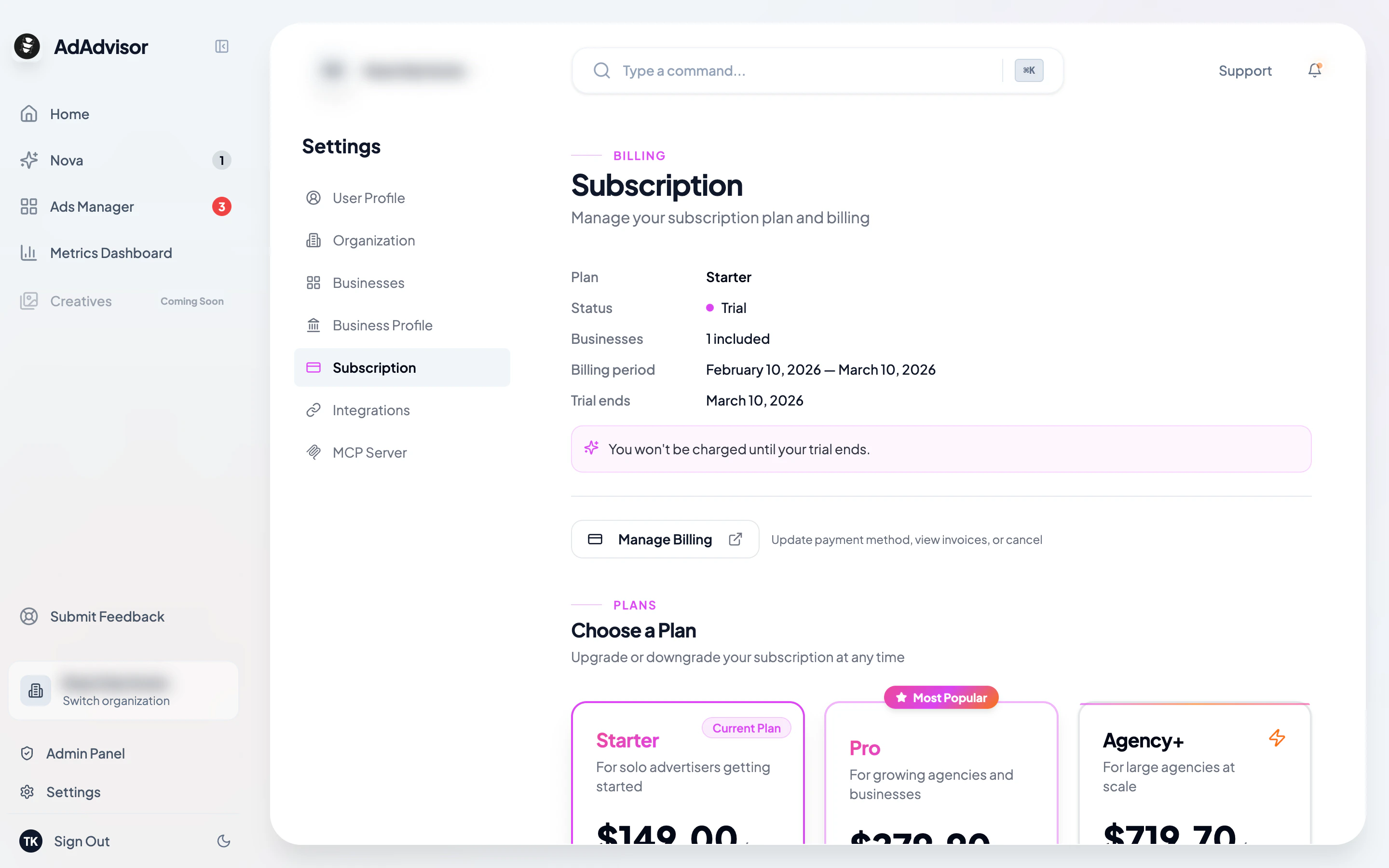 ## Your current plan
At the top of the page, you'll see a card showing:
* Your **plan name** (Starter, Pro, or Agency+)
* **Status** (Active, Trial, Past Due, Canceled)
* **Number of businesses** included
* **Current billing period** dates
* **Trial end date** (if you're on a trial)
## Upgrading your plan
Scroll down to the "Change Plan" section.
Click **Select Plan** on the card for the plan you'd like to switch to.
You'll be redirected to Stripe Checkout. Enter or confirm your payment details and complete the transaction.
After payment, your plan is upgraded and you can add more businesses right away.
## Downgrading your plan
If you switch to a plan with fewer business slots:
Click **Select Plan** on the cheaper plan.
If you have more active businesses than the new plan allows, a dialog will ask you which businesses to deactivate. Select the ones you want to pause.
The selected businesses are marked "Pending Deactivation" and will be deactivated at the end of your current billing period. Until then, they continue working normally.
Deactivated businesses can't be accessed until you reactivate them (which requires an available slot in your plan). Make sure you don't deactivate a business you're actively managing.
## Managing your payment method
Click **Manage Subscription** to open the Stripe Customer Portal. From there you can:
* Update your credit card or payment method
* View and download invoices
* Cancel your subscription
## Canceling your subscription
Cancellation is handled through the Stripe Customer Portal. When you cancel:
* Your subscription stays active until the end of the current billing period
* After that, your account reverts to the free tier
* Your data isn't deleted, so you can resubscribe later and pick up where you left off
## Free trial
All new accounts start with a 7-day free trial, no credit card required. You get full access to all features during the trial. When the trial ends, you can choose a plan to continue using AdAdvisor.
## Your current plan
At the top of the page, you'll see a card showing:
* Your **plan name** (Starter, Pro, or Agency+)
* **Status** (Active, Trial, Past Due, Canceled)
* **Number of businesses** included
* **Current billing period** dates
* **Trial end date** (if you're on a trial)
## Upgrading your plan
Scroll down to the "Change Plan" section.
Click **Select Plan** on the card for the plan you'd like to switch to.
You'll be redirected to Stripe Checkout. Enter or confirm your payment details and complete the transaction.
After payment, your plan is upgraded and you can add more businesses right away.
## Downgrading your plan
If you switch to a plan with fewer business slots:
Click **Select Plan** on the cheaper plan.
If you have more active businesses than the new plan allows, a dialog will ask you which businesses to deactivate. Select the ones you want to pause.
The selected businesses are marked "Pending Deactivation" and will be deactivated at the end of your current billing period. Until then, they continue working normally.
Deactivated businesses can't be accessed until you reactivate them (which requires an available slot in your plan). Make sure you don't deactivate a business you're actively managing.
## Managing your payment method
Click **Manage Subscription** to open the Stripe Customer Portal. From there you can:
* Update your credit card or payment method
* View and download invoices
* Cancel your subscription
## Canceling your subscription
Cancellation is handled through the Stripe Customer Portal. When you cancel:
* Your subscription stays active until the end of the current billing period
* After that, your account reverts to the free tier
* Your data isn't deleted, so you can resubscribe later and pick up where you left off
## Free trial
All new accounts start with a 7-day free trial, no credit card required. You get full access to all features during the trial. When the trial ends, you can choose a plan to continue using AdAdvisor.