> ## Documentation Index
> Fetch the complete documentation index at: https://adadvisor.ai/docs/llms.txt
> Use this file to discover all available pages before exploring further.
# Viewing Recommendations
> Browse your recommendations by priority and type, and understand what each card is telling you.
After generating recommendations, you can view them in two places: the **dashboard** (quick summary) and the **Ads Manager** (detailed panel). This page covers how to read and navigate your recommendations.
## Where to find your recommendations
### Dashboard
The recommendation status card on your dashboard shows a count of pending recommendations grouped by urgency level (critical, high, medium, low). Click through to see the full list.
### Ads Manager
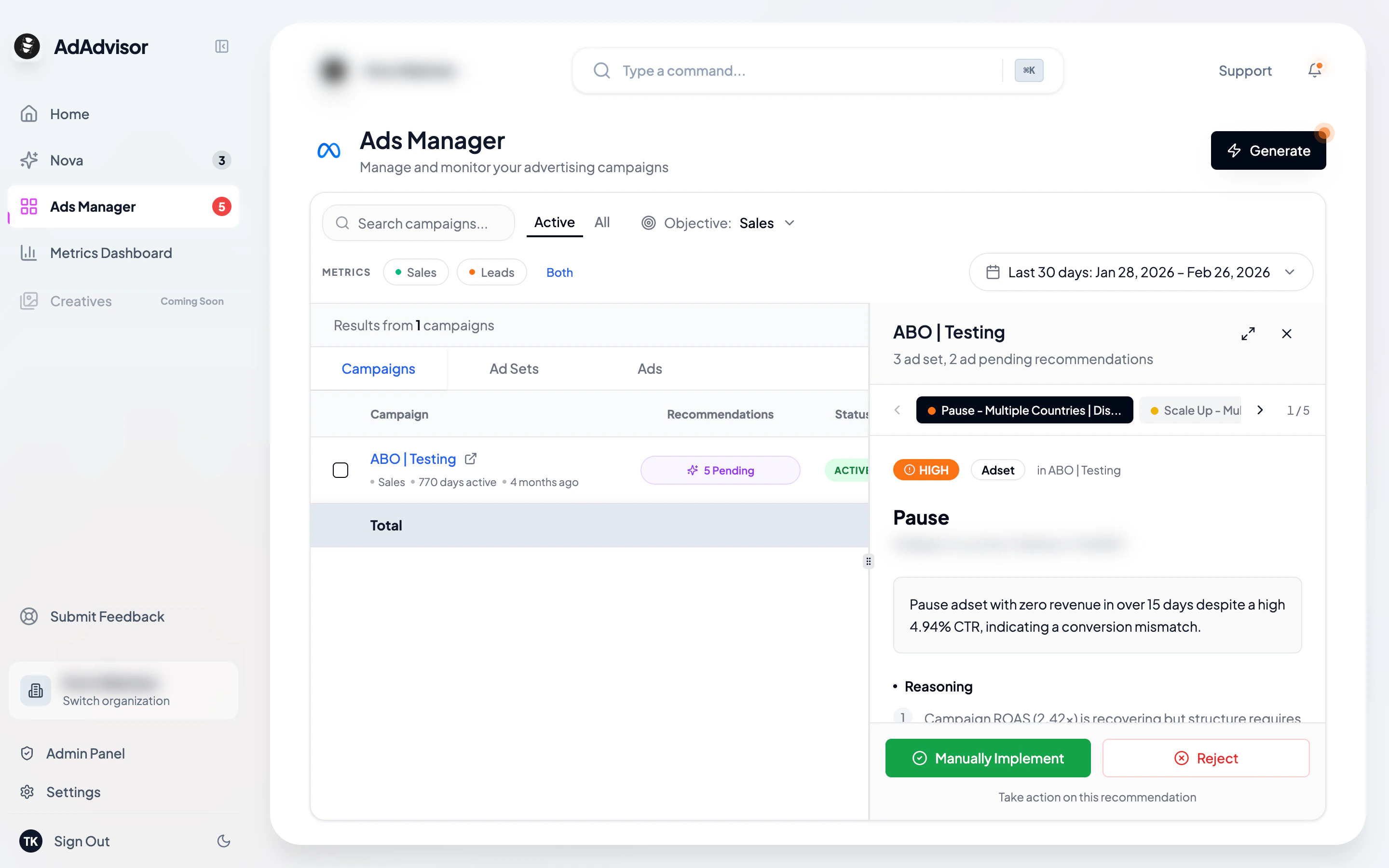
In the Campaigns tab, each campaign's Recommendations column shows a badge with the count. Click it to open the [recommendations panel](/user-guide/campaign-recommendations-panel) on the right side.
 ## Anatomy of a recommendation
Each recommendation card contains several sections. Here's what each one means:
### Header
* **Entity name**: The campaign, ad set, or ad this applies to
* **Entity type badge**: Shows whether this is a campaign-level, ad-set-level, or ad-level recommendation
* **Priority badge**: Color-coded (red for critical, orange for high, yellow for medium, blue for low)
* **Action**: What the AI is suggesting (e.g., "Scale Up," "Refresh Creatives," "Pause")
### Summary
A one-sentence explanation of what to do and why. This is designed to be scannable so you can quickly decide if you want to read more.
### Reasoning chain
A breadcrumb-style trail showing how the AI reached this conclusion. It might start with an account-level observation, narrow to a campaign, then to a specific ad set. This gives you the full logical path from data to recommendation.
For example:
> Account spend is concentrated in 2 campaigns > Campaign "Summer Sale" has declining ROAS over 7 days > Ad Set "Broad Targeting" has high frequency causing audience fatigue
### Detailed reasoning
A paragraph with the full explanation. This includes the specific data points the AI observed, why they matter, and what it expects will happen if you follow the recommendation.
### Key metrics
The data points that drove this recommendation. Each metric shows:
* **Current value**: What the metric is right now
* **Trend direction**: Whether it's improving, worsening, stable, volatile, or recovering
* **Trend across time windows**: How the value changed across 3d, 5d, 7d, 15d, and 30d windows
* **Comparison**: How the current value stacks up against your target or a relevant threshold
## Anatomy of a recommendation
Each recommendation card contains several sections. Here's what each one means:
### Header
* **Entity name**: The campaign, ad set, or ad this applies to
* **Entity type badge**: Shows whether this is a campaign-level, ad-set-level, or ad-level recommendation
* **Priority badge**: Color-coded (red for critical, orange for high, yellow for medium, blue for low)
* **Action**: What the AI is suggesting (e.g., "Scale Up," "Refresh Creatives," "Pause")
### Summary
A one-sentence explanation of what to do and why. This is designed to be scannable so you can quickly decide if you want to read more.
### Reasoning chain
A breadcrumb-style trail showing how the AI reached this conclusion. It might start with an account-level observation, narrow to a campaign, then to a specific ad set. This gives you the full logical path from data to recommendation.
For example:
> Account spend is concentrated in 2 campaigns > Campaign "Summer Sale" has declining ROAS over 7 days > Ad Set "Broad Targeting" has high frequency causing audience fatigue
### Detailed reasoning
A paragraph with the full explanation. This includes the specific data points the AI observed, why they matter, and what it expects will happen if you follow the recommendation.
### Key metrics
The data points that drove this recommendation. Each metric shows:
* **Current value**: What the metric is right now
* **Trend direction**: Whether it's improving, worsening, stable, volatile, or recovering
* **Trend across time windows**: How the value changed across 3d, 5d, 7d, 15d, and 30d windows
* **Comparison**: How the current value stacks up against your target or a relevant threshold
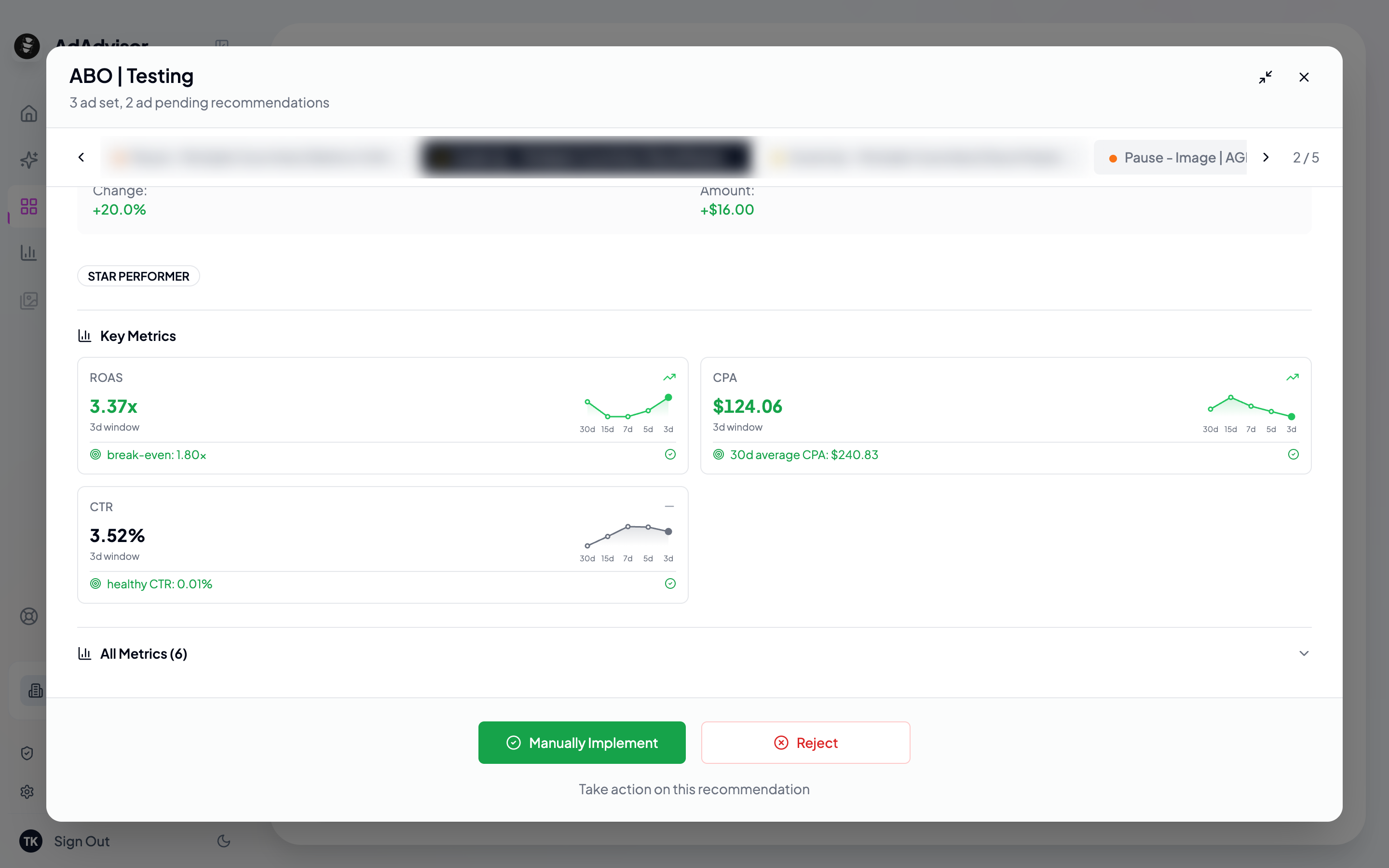 ### Status tags
Badges showing the entity's health status (Star Performer, Budget Hog, Creative Fatigue, etc.). These give you quick visual context about the entity's overall health.
### Implementation details
Specific instructions for carrying out the recommendation. For budget actions, this includes the exact new budget amount. For targeting changes, it describes what to adjust. For creative recommendations, it outlines what kind of new assets to create.
## Recommendation statuses
Every recommendation has one of four statuses:
| Status | Meaning |
| -------------- | ---------------------------------------------------------------------- |
| **Pending** | Waiting for you to take action |
| **Accepted** | You implemented it (manually or via auto-implement) |
| **Rejected** | You dismissed it |
| **Unactioned** | Automatically marked when new recommendations replace old pending ones |
Focus on **Pending** recommendations first. These are the ones that need your attention. Unactioned recommendations from previous runs are archived automatically when you generate new ones.
## Navigating between recommendations
For details on how to navigate the panel in Ads Manager (tabs, previous/next, filtering, and expanding), see [Campaign Recommendations Panel](/user-guide/campaign-recommendations-panel).
### Status tags
Badges showing the entity's health status (Star Performer, Budget Hog, Creative Fatigue, etc.). These give you quick visual context about the entity's overall health.
### Implementation details
Specific instructions for carrying out the recommendation. For budget actions, this includes the exact new budget amount. For targeting changes, it describes what to adjust. For creative recommendations, it outlines what kind of new assets to create.
## Recommendation statuses
Every recommendation has one of four statuses:
| Status | Meaning |
| -------------- | ---------------------------------------------------------------------- |
| **Pending** | Waiting for you to take action |
| **Accepted** | You implemented it (manually or via auto-implement) |
| **Rejected** | You dismissed it |
| **Unactioned** | Automatically marked when new recommendations replace old pending ones |
Focus on **Pending** recommendations first. These are the ones that need your attention. Unactioned recommendations from previous runs are archived automatically when you generate new ones.
## Navigating between recommendations
For details on how to navigate the panel in Ads Manager (tabs, previous/next, filtering, and expanding), see [Campaign Recommendations Panel](/user-guide/campaign-recommendations-panel).