AI Businesses and MCP businesses
A business can be connected two ways, and the difference is what you pay for.
Every AI Business is also an MCP business. The reverse isn’t true, and it doesn’t need to be: connecting a tenth brand to the MCP costs nothing extra on Nova. You only pay again when you want the crew working that brand too.
Turn the crew on or off for a business with the AI toggle on its card. Adding an AI Business is immediate and prorated; removing one takes effect at the end of the billing period you’ve already paid for. See Subscription & Billing for the full picture.
Viewing your businesses
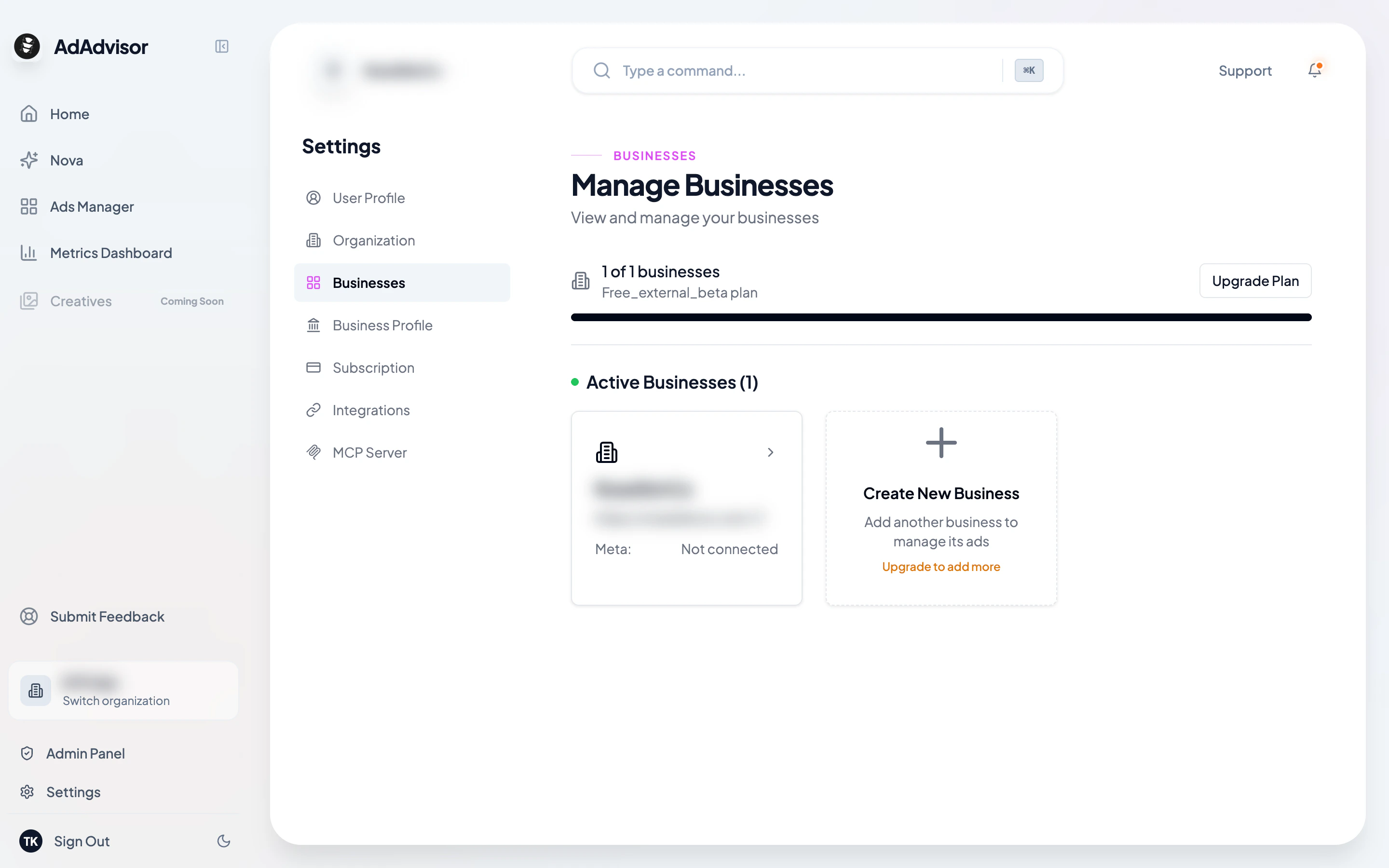
Go to Settings > Businesses to see all businesses in your current organization. The page shows:- A usage indicator at the top (e.g., “2 of 3 businesses”), and, on Nova, a separate AI Business counter (e.g., “1 of 2 AI Businesses used”)
- Cards for active businesses, pending deactivation, and deactivated businesses
Creating a new business
1
Click the 'Create New Business' card
At the end of the active businesses grid, you’ll see a card with a plus icon. Click it to open the creation dialog.
If you’ve reached your plan’s business limit, this card will be disabled and show an “Upgrade to add more” message. On Nova there is no business limit under fair use, so this only comes up on the Free and MCP-only tiers.
2
Fill in the details
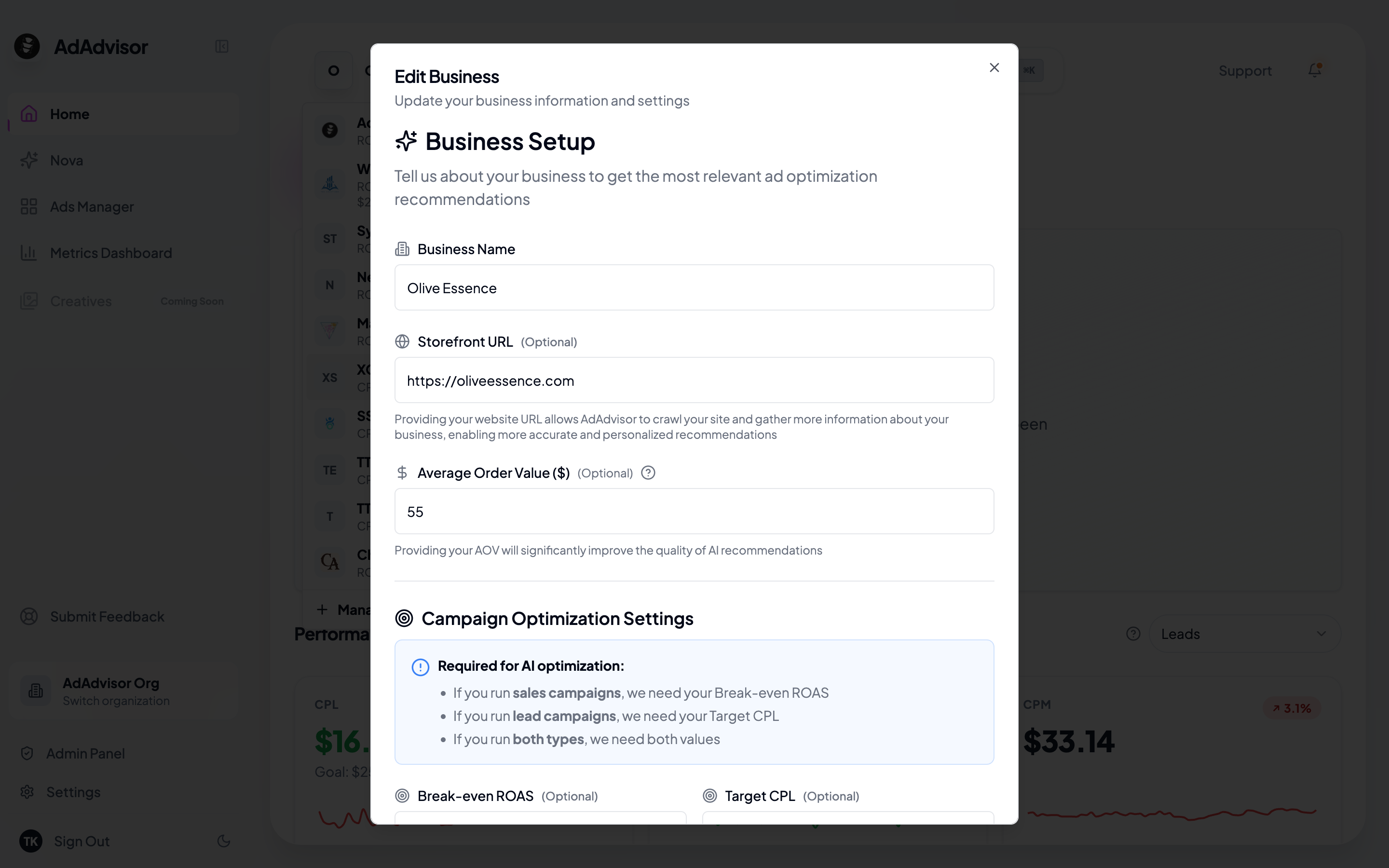
The form has the following fields:
3
Click 'Create'
The business is created and added to your organization. You can now select it from the sidebar.
4
Connect a Meta ad account
After creating the business, you’ll need to connect the Meta ad account associated with it. See Connect Meta Ads for how to do that.
Editing a business
Click the edit icon on any business card to open the edit dialog. You can update any field, including the business name, storefront URL, and all metrics.