Metric toggle
At the top-left of the filter bar, you’ll see three buttons:- Sales
- Leads
- Both
Shows revenue-focused columns:
Universal columns
Regardless of which metric mode you select, these columns are always visible:Objective filter
On the Campaigns tab, you’ll see an Objective dropdown. This lets you filter campaigns by their Meta objective type (Sales, Leads, Traffic, etc.).- You can select multiple objectives at once using checkboxes.
- A Select All option is available at the top.
- The dropdown shows how many objectives are selected (e.g., “2 selected”).
The objective filter only appears on the Campaigns tab. Ad Sets and Ads inherit the filter from the campaign selection.
Date range picker
On the right side of the filter bar, the date range picker lets you choose the time period for all the metrics in the table. Click it to see preset options or define a custom range. The metrics in every column and the totals row will update to reflect the selected period.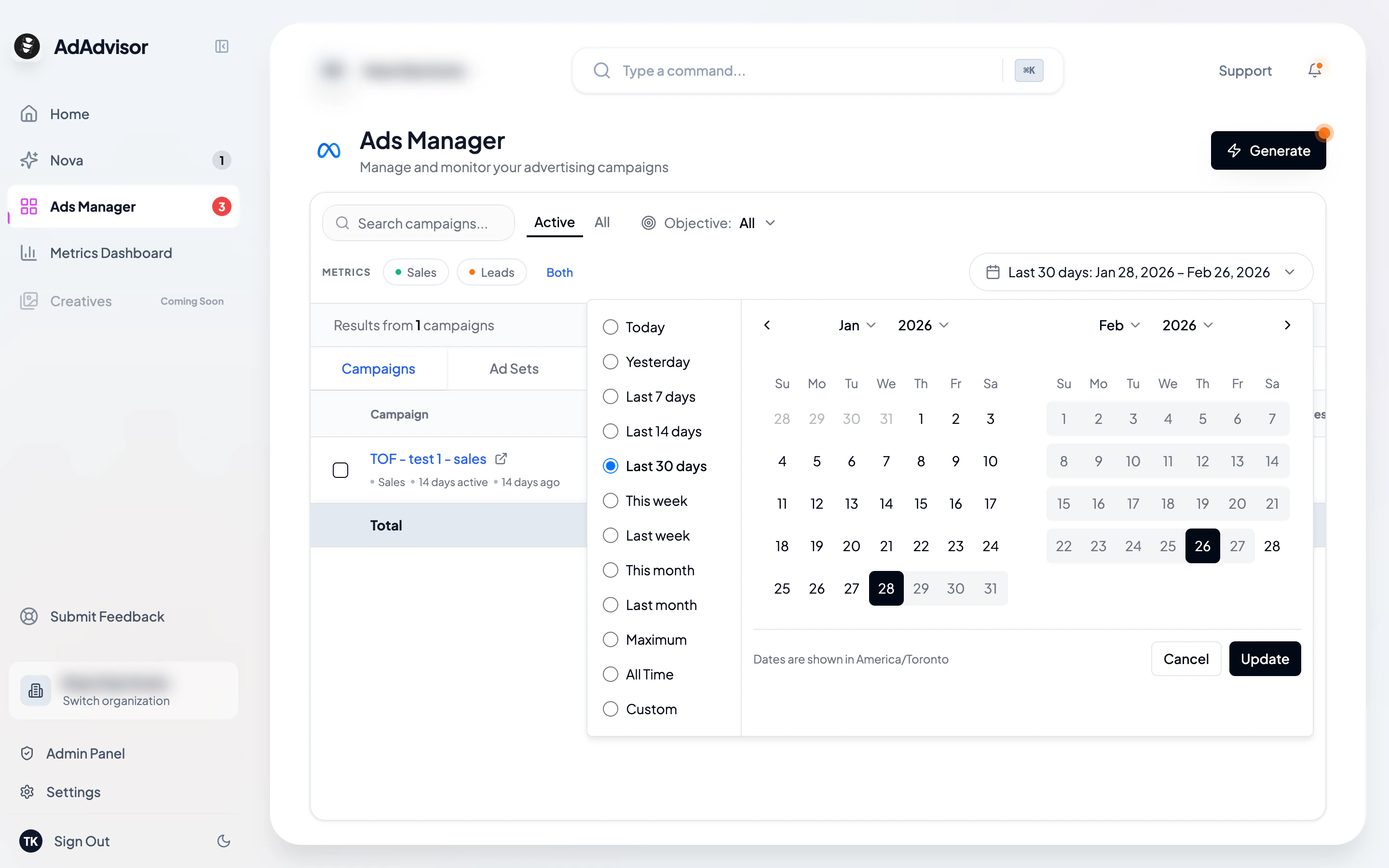
Performance thresholds (color coding)
Just like on the dashboard, Ads Manager color-codes key metrics based on your business targets:ROAS thresholds
If you’ve set a break-even ROAS on your business:- Green: ROAS is at or above your break-even target
- Yellow: ROAS is between 80-100% of target
- Red: ROAS is below 80% of target
CPL thresholds
If you’ve set a target CPL:- Green: CPL is at or below target
- Yellow: CPL is between 100-125% of target
- Red: CPL is above 125% of target
Generate Recommendations button
At the top of Ads Manager, you’ll also see the Generate Recommendations button. It works the same as on the dashboard. Before generating, AdAdvisor checks that:- Your business has the required metrics set (AOV, daily budget cap, and either break-even ROAS or target CPL)
- Your data is synced
- You haven’t already generated within the last 24 hours
- Any previous recommendations have been acted on or dismissed